
Help & Resources
Manage your account and get support
Find billing, account preferences, team access, and Vibe3D support. Learn which details to include when reporting an issue without sharing sensitive information.
Open your profile to check your credit balance. Use Billing & Invoices for billing history and Manage Account for preferences. For help with an operation or account issue, use Vibe3D support and include the exact message and action you took.
On this page
Find account and billing controls
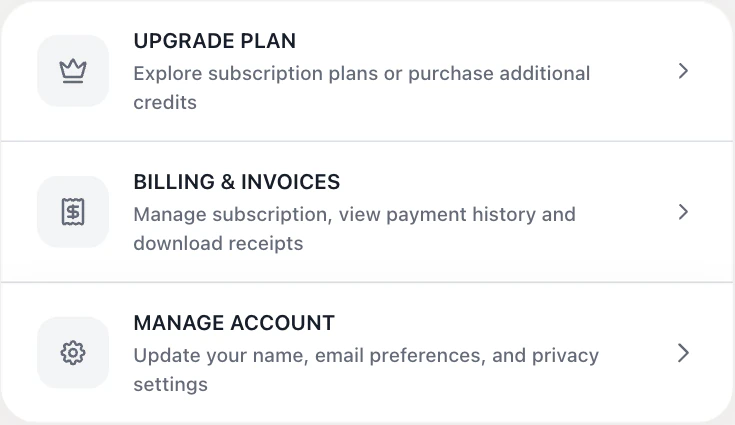
Open your profile while signed in. The balance card shows your remaining credits under your plan name or Available Credits. On a paid account you manage, choose Upgrade Plan to explore plans and credit packs. A free account can show the offers directly.
Choose Billing & Invoices to open the billing provider's portal in a new tab. Use the options offered there to review invoices and available subscription actions. Your payment history may be empty before the first purchase. Portal labels can vary, so follow the actual options shown rather than looking for a button named in an older screenshot.
Use Manage Account for profile, preference, and privacy settings. Billing actions and profile preferences are separate. If a billing portal does not open, check whether your browser blocked the new tab and confirm that you are signed into the account that made the purchase.
Student and team access
Student offers depend on eligibility and the account's available offers. If you expect an academic offer but do not see one, contact support with the school and account email you use. Do not send identity documents or other sensitive material unless support requests them through an appropriate channel.
Eligible team owners can use Manage Team to manage invitations and seats. A member uses the plan and credits made available by the team. If you see a shared-plan notice, contact your team owner about billing changes or access.
Team membership and a shared project link are different. A view-only project link does not give someone editing access or make them a member of your paid account. Review project sharing before sending client work.
Commercial use and privacy
Read the current Terms of Service and Privacy Policy for the applicable terms. An image-generation workflow does not establish rights to third-party source images, designs, trademarks, or other materials you upload.
Confirm that you have permission to use and share the source assets. Before sharing a project link, choose the intended access setting and check the scene content. For a contractual or licensing question, ask support about your specific account and intended use.
Contact support with useful details
Open Vibe3D support or email support@vibe3d.ai. Include:
- The account email associated with the issue.
- The project name or link, if it is appropriate to share with support.
- The tool or action you selected and the approximate time.
- The exact error message and what you expected to happen.
- A screenshot with confidential client details removed where possible.
Do not send passwords, payment-card details, authentication codes, or private credentials. For a rendering problem, describe the visible design difference and share only the project material you are authorized to disclose.
If an operation is still processing, note that status instead of repeatedly resubmitting it. Support can review the specific issue; this guide does not promise a response time or automatic refund.