Help & Resources
Troubleshoot uploads, renders, edits, and videos
Work through common Vibe3D problems, including rejected images, unexpected design changes, unavailable actions, failed generation, and export selection.
Start with the exact message shown and the last action you took. Check the input format and dimensions for uploads, compare the source for design changes, and check your account balance or access notice before retrying a tool.
On this page
My image will not upload
Confirm the image is JPG/JPEG, PNG, or WebP, and that both dimensions are at least 512 pixels. Open it on your computer to check that it is a readable image rather than a damaged file or a renamed document.
Export a fresh image from the source application if necessary. Native model files such as SKP or RVT need an image export for the standard scene uploader. See supported inputs.
If the format and dimensions are valid, note the exact error and try a fresh upload after confirming your connection is working. Do not repeatedly submit while the upload is still processing. Keep your original file until the uploaded scene has been checked.
The render changes a design element
Compare the result with the source, especially around the affected object or opening. If the source is unclear, improve the model view and export it again. Check whether an optional instruction conflicts with the visible design.
For an isolated material or object change, use Edit. For widespread differences, restart from a clear source and controlled settings. The design preservation checklist helps separate an attractive output from an accurate visualization.
A targeted edit affects too much of the image
Select a tighter, clearer target and ask for one change. Avoid including adjacent furniture or a neighboring surface in a rectangle intended for a wall finish. Check whether your instruction also requests a broader change to style or lighting.
If the current result already contains an unwanted change, return to an earlier useful version before trying again. Inspect the whole image after the new edit; a targeted instruction does not guarantee that every other pixel stays identical.
Relight, Enhance, or another tool is unavailable
Read the message shown for the selected scene. Relight is for interiors; for an exterior time-of-day change, use Edit → Change Time of Day. Close-up outputs have a more limited set of follow-up actions than ordinary render scenes.
An Already Enhanced! message means you have selected an enhanced result. Select the appropriate earlier image if you need to work from a different source. For an upgrade or credit notice, check credits and plans rather than assuming every account has the same tools.
Generation fails or appears stuck
Keep the exact error, project name, tool, and approximate time. Check the scene and your available credits before deciding to retry. If a previous request is still processing, wait for its status to resolve instead of starting duplicate work.
If the failure persists, contact support with those details. Do not assume that a failed result has a particular refund outcome; support can review the specific operation and account.
My flythrough looks inconsistent
Review the source images and transitions. Check doors, windows, furniture, and edges throughout the clip, not only the first and last frames. Try a more restrained movement or a sequence with more closely related views. See flythroughs for review checks and visible limits.
My export omits a scene
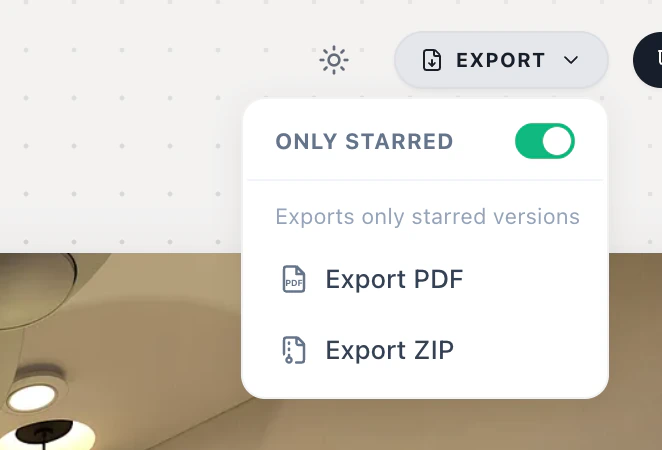
Check that the scene has a completed result. If Only Starred is selected, unstarred scenes are skipped. Select the intended final versions, star the ones you want, and review the project export settings again.