
Architectural Workflows
Create day and night versions of one exterior
Use Vibe3D's exterior time-of-day edits to develop daytime, evening, and night options from one architectural view while checking design consistency.
For an exterior render, choose Edit → Change Time of Day, select the desired time, and use Apply changes. Compare the generated version with the daytime source. The separate Relight tool currently supports interior scenes, so use the Edit controls for this exterior workflow.
On this page
Start with a daytime view you trust
Use this workflow to show a client how the same exterior might feel in different lighting. Begin with an image that already represents the proposed building reasonably well. Check the roof, entrance, glazing, and ground levels before developing alternative atmospheres.
Keep the camera composition consistent. Day and night images are easier to compare when the building occupies the same position in both. If you change the viewpoint as well as the lighting, the client has to separate two decisions at once.
For a new model view, make the first image using the house exterior workflow. Download the daytime result so you have a reference even while exploring later versions.
Create the evening or night version
- In the Vibe3D project, select the exterior scene and the version you want to use as the starting point.
- Open Edit in the toolbar.
- Choose Change Time of Day.
- Select an option such as Golden hour, Sunset, Blue hour, or Night, depending on the comparison you need.
- Use Apply changes, then wait for the new version to finish.
- Compare the result with the original daytime image before making another change.
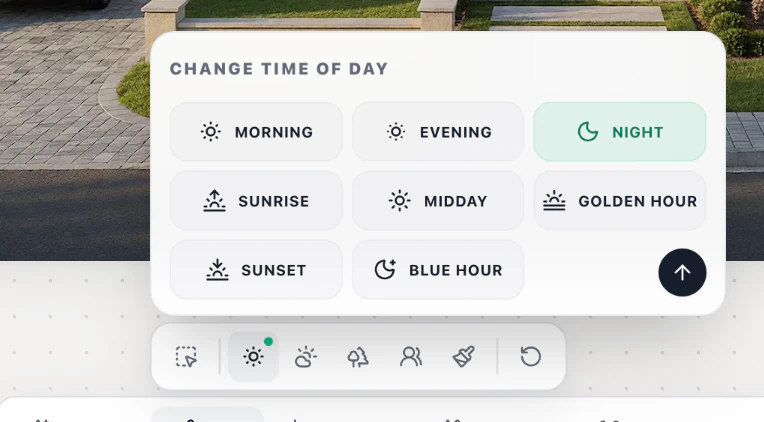
Night is selected in this example. The daytime view stays on screen until you apply the edit.
This operation generates an edited image. A darker sky alone is not enough to make the result useful: check that entrances remain readable, glazing looks plausible, and artificial lighting does not imply a different building design.
For another option, return to the same baseline version before making the next time-of-day edit. That makes it easier to assess each option against one common starting point.
Why not use the Relight button?
The dedicated Relight tool currently supports interior scenes. Use it to adjust natural and artificial lighting indoors. For an exterior, use Edit → Change Time of Day as described above.
For an indoor day/evening comparison, see relighting. Do not assume that an exterior image has the same interactive lighting controls simply because it contains visible interior lights behind windows.
Keep atmosphere changes separate
Exterior Edit also offers Change Atmosphere, with weather and season choices. If you need an evening image and a rainy-weather option, generate and evaluate the lighting change first. Then decide whether a weather change is needed for the presentation.
A wet surface can change reflections and the apparent color of paving. Snow or vegetation changes can obscure small architectural details. Inspect those areas rather than treating the atmospheric treatment as a harmless filter.
Keep site conditions honest. A dramatic winter image is a visualization option, not evidence of the site's expected climate or actual landscape appearance.
Review the pair for design consistency
Place the daytime and nighttime downloads side by side. Check the following before including both in a client deck:
- Window counts, mullions, door positions, and roof edges remain consistent with the proposal.
- Steps, paths, and entrances still connect in a plausible way.
- Bright windows have not become extra openings or changed room layouts.
- Exterior fixtures and light washes do not suggest a lighting specification that has not been designed.
- Material boundaries remain recognizable despite the change in contrast.
AI editing can introduce changes outside the intended lighting adjustment. If a version alters an important part of the architecture, use another version or improve the source rather than accepting it only for its mood.
Download or build a time-shift video
Use Download → Download Image for each selected version, and label the files by the atmosphere they show. Keep the daytime baseline with them for review.
If the pair is consistent enough for animation, the render-to-video workflow explains how to combine versions in a flythrough. The builder includes Time Shift for a transition between different times of the same scene. Review that generated motion separately; matching still images do not guarantee a geometrically exact transition.