
Edit & Refine Renders
Refine renders with HyperReal Enhance
Use HyperReal Enhance on a suitable architectural render, compare the result with its source and choose whether to download or continue refining.
Select the render you want to refine, open Enhance and use the Enhance action in the HyperReal Enhance panel. Review the new version against the original before downloading. Fidelity and Lumen are the Render choices; HyperReal Enhance is a separate finishing action.
On this page
 Original image
 Vibe3D result
Decide whether the image needs enhancement
Use HyperReal Enhance when the camera, layout and main design are settled, but the image would benefit from more convincing surface detail and finish. Start from a finalized Vibe3D render or a draft exported from another renderer. Look at the depth of the light and shadows, upholstery and timber textures, and reflections in glass or mirrors. Keep the framing fixed so you can judge those differences against the starting image.
Use Render for a model view that still needs its first visualization. Use Edit for a specific design change, such as replacing a material or removing an object. Enhancement should not be used to hide an incorrect building shape or a source view that leaves out important information.
Choose a source
Open the project and select the image version you want to refine. Keep the baseline available so you can check what changed.
For work created in Enscape, V-Ray, D5, Lumion, Twinmotion, Corona or another renderer, export an image first. This workflow works with the image, not the renderer's project file. Use a clean export without application controls, selection outlines or presentation text. Follow supported inputs and the Enscape workflow for preparation.
Your account may offer a dedicated enhancement starting point. Use the options visible in your workspace; the normal scene toolbar provides the HyperReal Enhance action described below.
Run HyperReal Enhance
- Select a suitable render in the project.
- Choose Enhance from the scene toolbar.
- Review the HyperReal Enhance panel and the amount shown before starting.
- Choose Enhance and wait for the result.
- Compare the new version with the source before deciding to keep it.
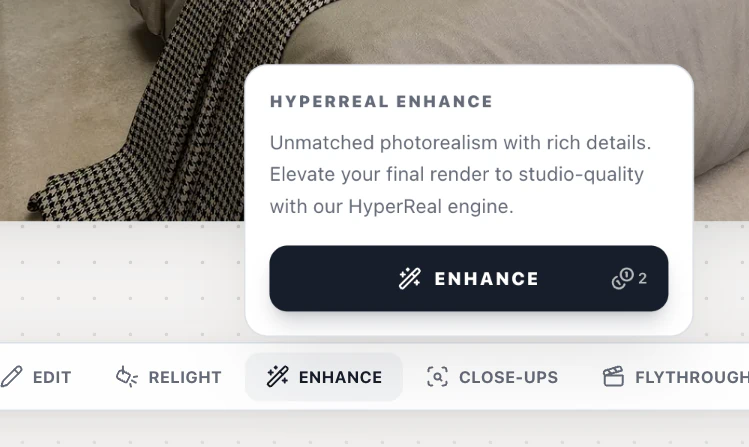
If the panel shows Upgrade to Enhance, review the available account options rather than assuming that the source image is invalid. Credits and plans explains how to check access and balance. If the selected version is already enhanced, the panel can show Already Enhanced!; select the intended earlier version for a different attempt.
Check details, not just the overall impression
Inspect the result at a useful viewing size. Pay particular attention to fabric texture, stone grain, glazing, reflections, fine edges and small repeated elements such as handles or railings. More detail is only helpful when it remains consistent with the design.
Check that surfaces have not acquired an unwanted pattern and that the enhancement has not changed the apparent dimensions of furniture or architectural openings. If it has, keep the earlier version or correct the underlying source before trying again.
Finish the image
Use Download → Download Image for the version you choose. Keep the original alongside it for future review. If the image is part of a client package, continue with presentations and exports.
Do not treat a more polished image as evidence that every design detail is accurate. For a practical review checklist, see preserving your design.