
Edit & Refine Renders
Color-correct a finished render
Fine-tune sharpness, brightness, warmth and saturation on a completed Vibe3D image, then download the version you want to deliver.
Select a completed image version and open Download. Use Adjust Details to preview small changes to the image, or leave the controls as they are. Choose Download Image to save that version with the adjustments shown.
On this page
Open Adjust Details
Select a scene with a completed image, then select the version you want to deliver. In the desktop scene toolbar, choose Download (the down arrow). The Adjust Details panel shows four sliders and a Download Image button. If the image already looks right, you can download it without moving a slider.
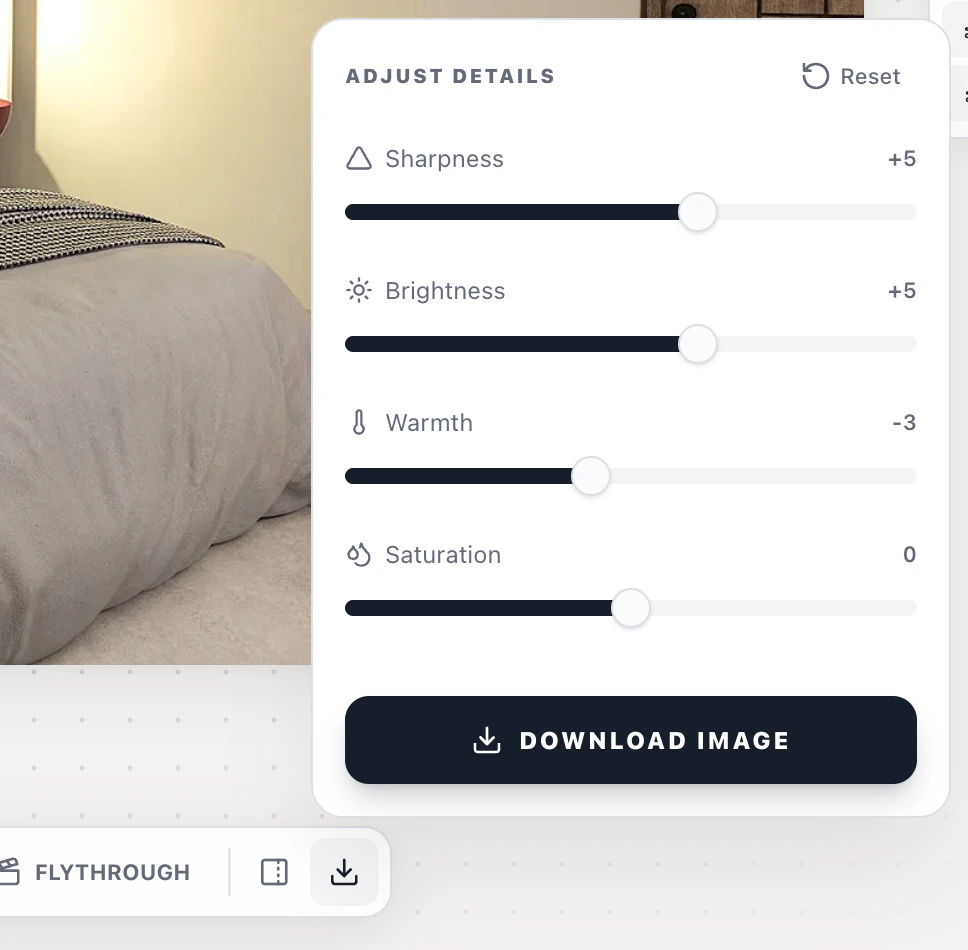
Choose the adjustment that fits the image
| Control | When to use it |
|---|---|
| Sharpness | Increase it if cabinet edges or trim look soft. Back it off if edges develop a halo. |
| Brightness | Lift a dark interior until you can read the furniture. Reduce it if pale walls or window frames lose detail. |
| Warmth | Move right to warm the image or left to cool it. Use a white wall or a neutral finish as a reference. |
| Saturation | Reduce it if upholstery or planting looks too vivid. Increase it slightly if finishes look washed out. |
Move one slider at a time and release it to judge the preview. For example, if oak cabinetry looks too orange but the room is bright enough, try reducing Warmth before changing Brightness. Reset returns all four sliders to zero.
These controls adjust the finished image. For a different direction of light or a new time of day, use the lighting guide.
Download the selected version
Choose Download Image. Open the saved file and check the details at the size your client will see. If you need a second treatment, keep the first file before downloading another.