
Projects & Presentations
Share an entire project
Create a view-only Vibe3D project link, choose who can open it, and understand which scenes, versions and future additions it includes.
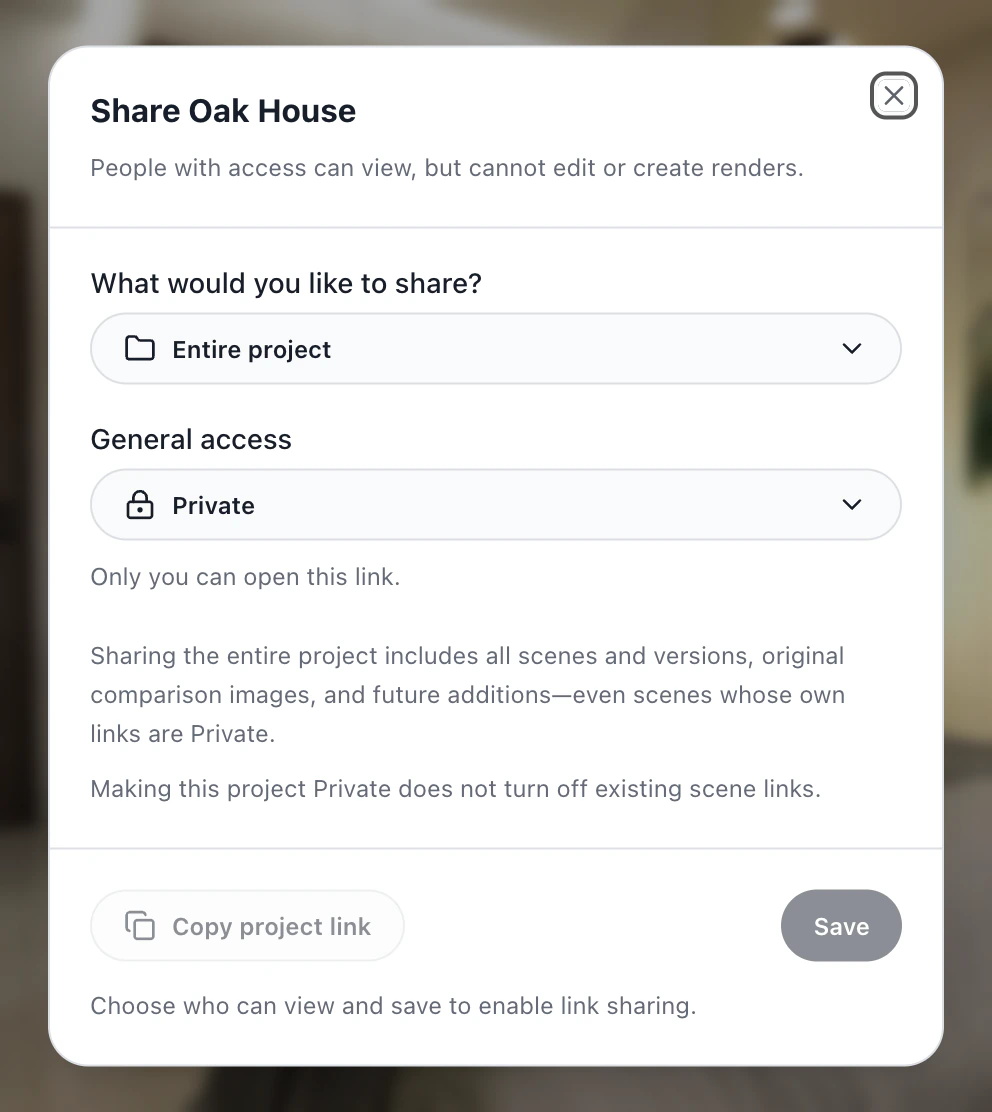
Open Share, select Entire project, choose General access and save. Copy project link shares all the project's scenes and versions, including original comparison images and future additions. Viewers cannot edit or create renders.
Set the audience
- Open the project and choose Share.
- Under What would you like to share?, choose Entire project.
- Choose General access, then Save.
- Once the change is saved, choose Copy project link. With Private selected, copying is disabled.
| Access | Who can view the project |
|---|---|
| Private | Only you. |
| Team members with the link | Accepted members of your team with the link, when team sharing is available. |
| Vibe3D users with the link | Anyone signed in to Vibe3D who has the link, including people outside your studio. |
| Anyone with the link | Anyone who receives the link, even without a Vibe3D account. |
Check what viewers will see
A project link includes all scenes and versions, original comparison images and future additions. Favorite stars do not filter the link. Even a scene whose own link is Private is visible through a shared project.
If a client only needs one view, share that scene instead. If they need only approved versions, send a starred export.
Turn off project access
Return to Share → Entire project, choose Private and Save. Existing scene links have their own settings. To end all link access, review and revoke any scene links you shared separately.