
Edit & Refine Renders
Relight and explore lighting moods
Quickly change time of day with Edit, or use Vibe3D Relight to explore interior lighting moods with Natural Light, Direct Lights, and Indirect Lights.
Use Edit → Change Time of Day for a quick lighting alternative on an interior or exterior render. For interactive interior lighting exploration, choose Relight, prepare the scene, and adjust Natural Light, Direct Lights, and Indirect Lights.
On this page
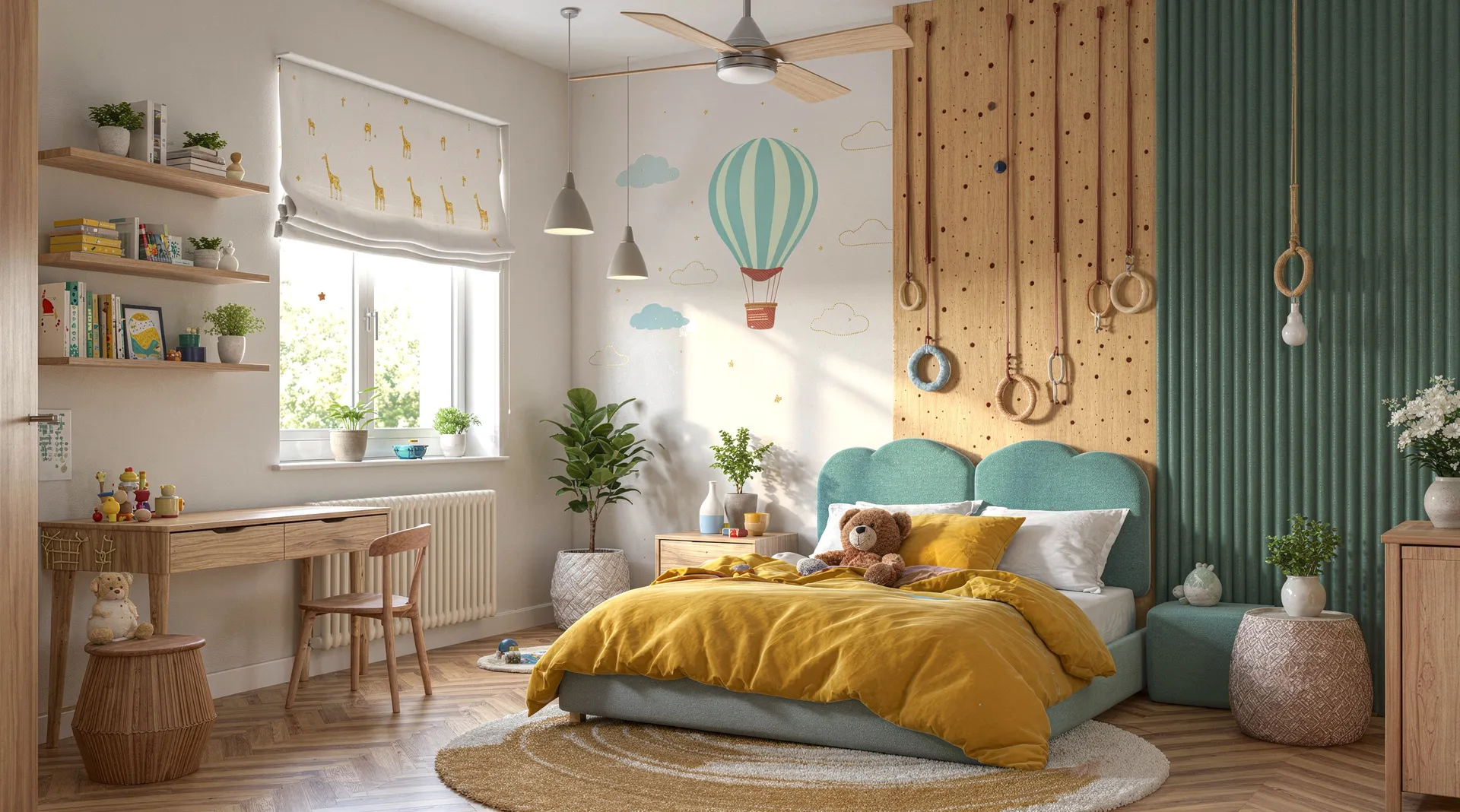 Original image
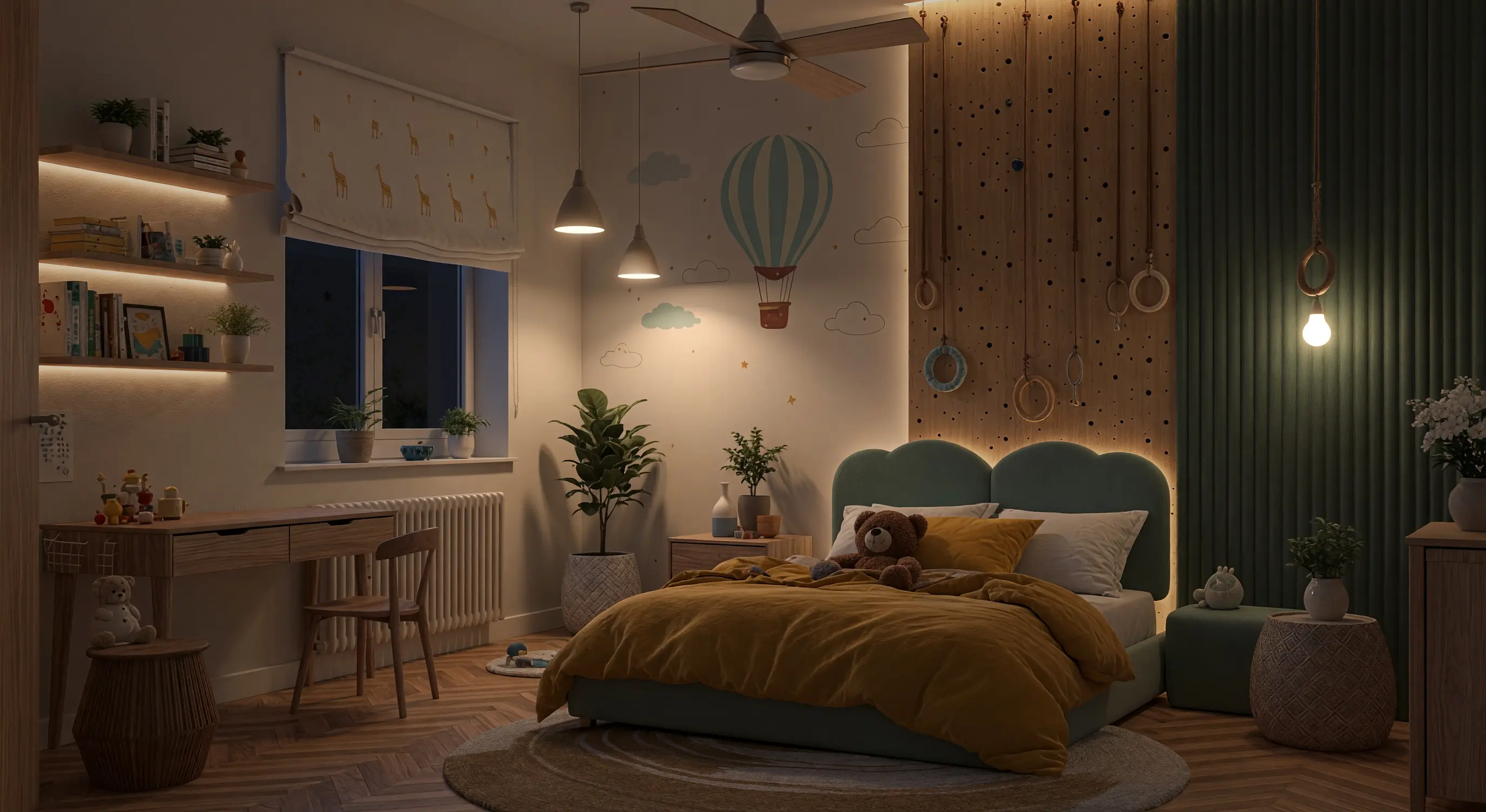 Vibe3D result
Choose a lighting workflow
Start with a completed render whose camera, layout, and materials are ready to review. Vibe3D offers two ways to explore its lighting:
| Your goal | Use |
|---|---|
| Quickly create a morning, evening, or night alternative for an interior or exterior | Edit → Change Time of Day, then Apply changes to generate a new version. |
| Explore and fine-tune many lighting moods in an interior | The dedicated Relight tool, followed by interactive natural and artificial lighting controls. |
Choose the scene and version you intend to use as the baseline. If a major material or object still needs changing, make that edit first.
Quickly change the time of day
- Select the completed interior or exterior render and open Edit.
- Choose Change Time of Day.
- Select Morning, Evening, Night, Sunrise, Midday, Golden hour, Sunset, or Blue hour.
- Select the arrow button labeled Apply changes and wait for the edited version.
- Compare it with the original before trying another option.
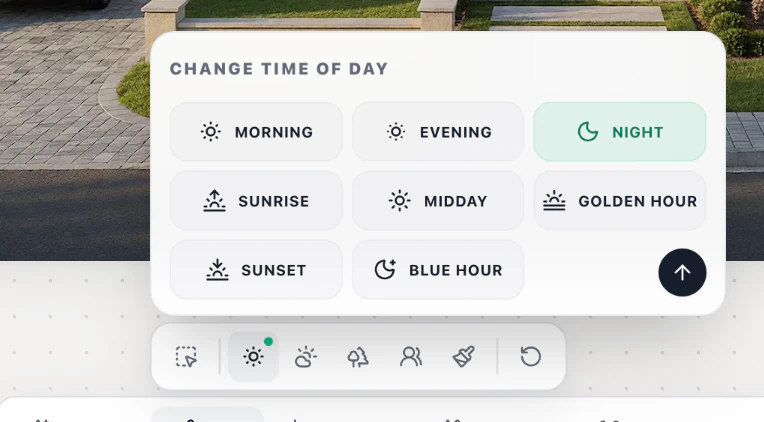
This is useful when you want a quick time-of-day alternative without tuning individual lighting groups. For a fair comparison, return to the same baseline before generating each option. The day-to-night workflow walks through an exterior presentation pair.
For weather or seasonal changes outdoors, use Edit → Change Atmosphere and review that adjustment separately.
Prepare an interior for Relight
The dedicated Relight panel currently supports interiors. It lets you explore lighting combinations interactively after preparing the selected scene.
- Select the completed interior render.
- Choose Relight in the scene toolbar.
- Review the displayed credit amount and select Relight to begin preparation.
- Wait for the lighting controls to appear before adjusting the scene.
If the selected scene is an exterior, use the Edit time-of-day workflow above. If you see an access, credit, or processing message, follow the guidance in credits and plans or troubleshooting.
Explore lighting moods interactively
Once the interior is prepared, combine these controls to explore the atmosphere you want:
- Time of Day adjusts natural light between Morning, Evening, and Night.
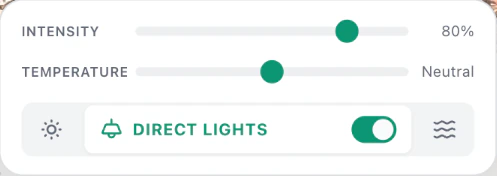
- Direct Lights: switch the group on or off and adjust its Intensity and Temperature.
- Indirect Lights: switch the group on or off and adjust its Intensity and Temperature independently.
To compare two moods, leave the Time of Day slider in the same position and switch Indirect Lights on and off. A group’s intensity and temperature sliders are available while that group is on. Then hold the artificial lights steady and move the natural-light slider. For example, explore a daylight-focused room, a warmer evening with indirect lighting, or a night appearance with selected artificial lighting. These are ideas to compare with your own scene, not tested settings that guarantee a particular result.
You can keep adjusting the prepared scene to explore more lighting combinations. Preparing another scene or version is a separate operation; check the amount shown before starting it.
Compare moods against the design
Keep the camera and design version consistent so the comparison answers a lighting question. Check that window brightness remains plausible, pale surfaces retain detail, and dark corners remain readable enough for the presentation.
Inspect material color as you move between warm and cool settings. A dramatic atmosphere may make a proposed finish harder to judge. Keep a more neutral appearance available alongside your preferred mood.
Relight supports visualization. Its appearance does not establish a photometric calculation or a fixture specification.
Download the appearance you want to present
Use Download → Download Image for the chosen appearance and inspect the downloaded file. Label each option clearly so clients can compare the lighting intention.
For a review package, follow project export. Keep the original design and lighting specifications available when making decisions about the actual room.