
AI Rendering
Keep renders close to your original design
Check geometry, material boundaries, furniture placement, and camera composition in Vibe3D, and choose a practical next step when a result changes the design.
Start with a clear source image, keep settings controlled, and compare each result with the original. Use targeted edits for isolated changes. Verify dimensions and technical details in the original model rather than treating an AI image as design evidence.
On this page
What does preserving a design mean?
A useful render should communicate the building or room you designed. Important checks include the camera composition, main proportions, openings, material boundaries, furniture positions, and repeated details. A visually polished result is not enough if it changes a feature your client needs to evaluate.
AI-generated images can reinterpret details. Treat them as visualizations to review, rather than measured drawings or guaranteed reproductions of the model. Keep the source image and model available throughout your review.
Give the render a clear starting point
Make important edges readable in the exported view. Remove selection highlights and avoid cropped building corners or ambiguous material boundaries. If a facade is a tiny part of the image, choose a composition where it has enough visual space.
For an interior, confirm that the furniture layout and opening positions are already correct. For an exterior, check rooflines, facade divisions, balconies, and ground contact before upload. Follow image preparation when the input is unclear.
Compare systematically
Select the version you want to inspect and use Compare when available. Review the original and result at the same scale. Work through a consistent checklist:
- Check the outer silhouette and the camera's field of view.
- Compare window and door count, spacing, and frame divisions.
- Check furniture position, relative scale, and circulation gaps.
- Follow material boundaries around corners, floors, ceilings, and joinery.
- Inspect railings, repeated slats, reflections, and small fixtures.
- Review at the size intended for delivery, then inspect uncertain details more closely.
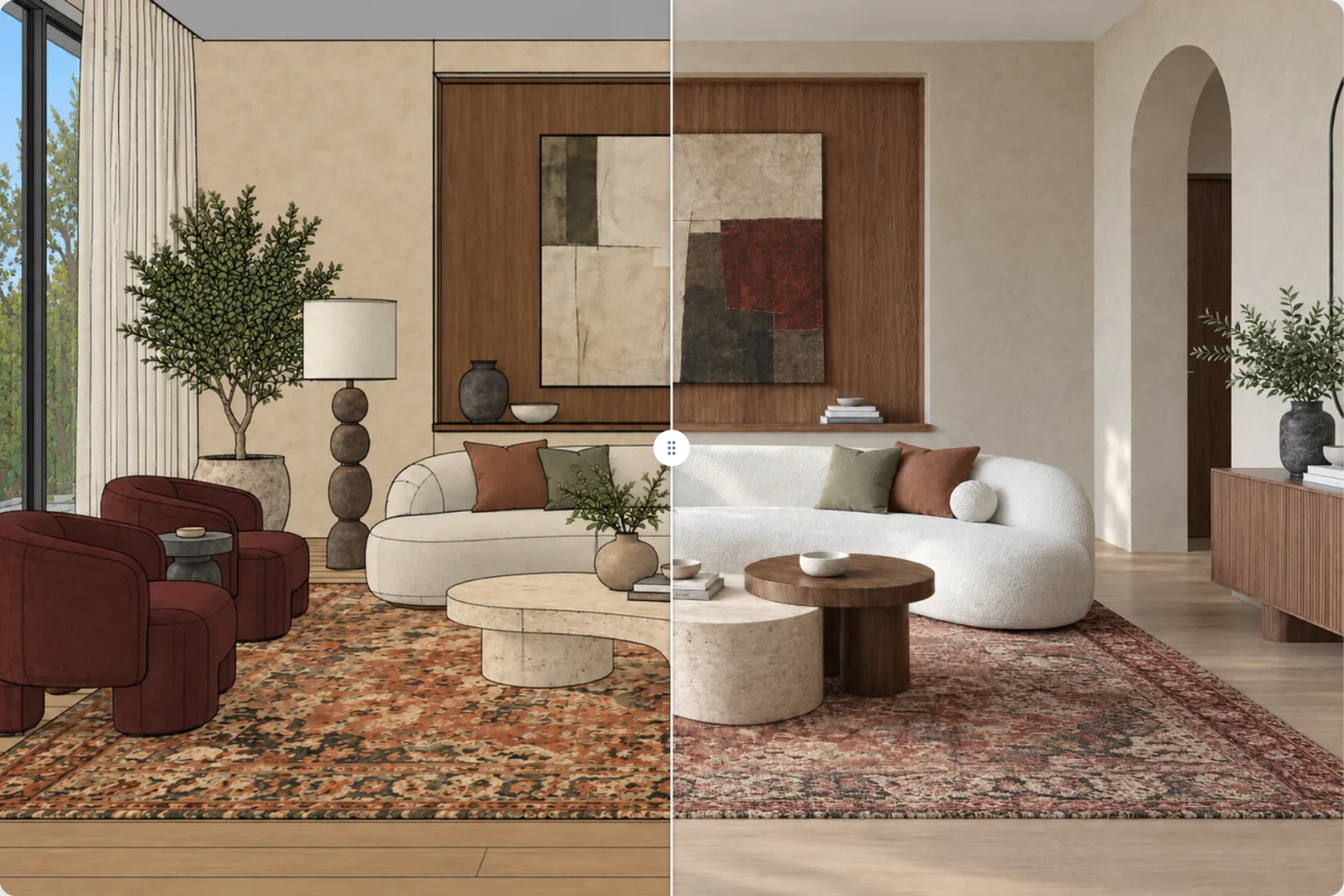
Drag the divider across a fixed feature, such as the archway or the edge of the sofa, and check whether it stays in place.
Star only a version you have reviewed. A star is a selection aid, not an automatic quality check.
Choose the right correction
If several areas are wrong, revisit the source image before adding more instructions. A clearer materialized view may communicate the design better than a longer prompt. Comparing Fidelity and Lumen on the same source can also help you judge which result better fits the project.
If one surface or object is wrong and the rest is useful, make a targeted edit. Keep the instruction specific and check the surrounding region afterward. Avoid building a long chain of changes from a version that already contains a significant structural error.
If you need another camera angle, export that view from the model. Invented views and AI video movement can reveal inconsistent geometry; they should not be treated as proof of what exists behind the visible surfaces.
Keep the model as the technical reference
Resolve dimensions, compliance, construction details, and material specifications in your normal design tools. When delivering a visualization, make sure the image reflects the approved design option and explain any conceptual changes to the client.
For a repeatable issue, save the source, result, chosen settings, and exact action so support can understand it without needing confidential project information.