
Projects & Presentations
Export a project as PDF or ZIP
Choose Export PDF for a presentation or Export ZIP for project files, and filter to starred versions when preparing a client handoff.
Open Export in the project toolbar. Choose Only Starred for a shortlist, or turn it off to include other completed scenes. Select Export PDF for a document or Export ZIP for output files.
Choose what goes into the export
Open a project with at least one completed scene and select Export in the top toolbar. Check the switch before choosing a format.
- Only Starred includes favorite versions and skips scenes without a star. It may already be selected if you have starred work in the project.
- Switch it off for Most Recent to include completed scenes that have no stars. A ZIP then uses the latest available output per scene. A PDF can still include multiple starred versions from the same scene. If an exact set of versions matters, star those versions and use Only Starred.
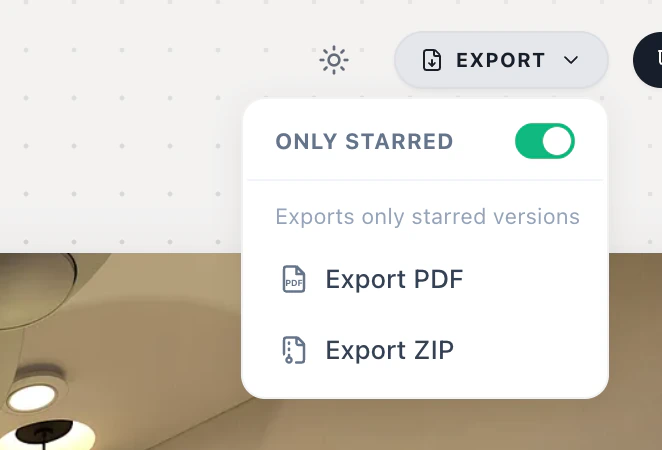
For example, to deliver two kitchen finishes but leave out an unfinished exterior, star both kitchen versions, leave the exterior unstarred, and export with Only Starred on.
Choose PDF or ZIP
Choose Export PDF for a document you can page through with a client. Choose Export ZIP for individual project output files. Open the download and check that it includes the expected views. If a scene is missing, check its completion status and the star filter.
To save just the image on screen, use Download Image. To let the client revisit a project as it changes, use a project sharing link.