
Projects & Presentations
Download an image
Save a single completed Vibe3D image to your device. Choose the right scene version and check the downloaded file before sending it to a client.
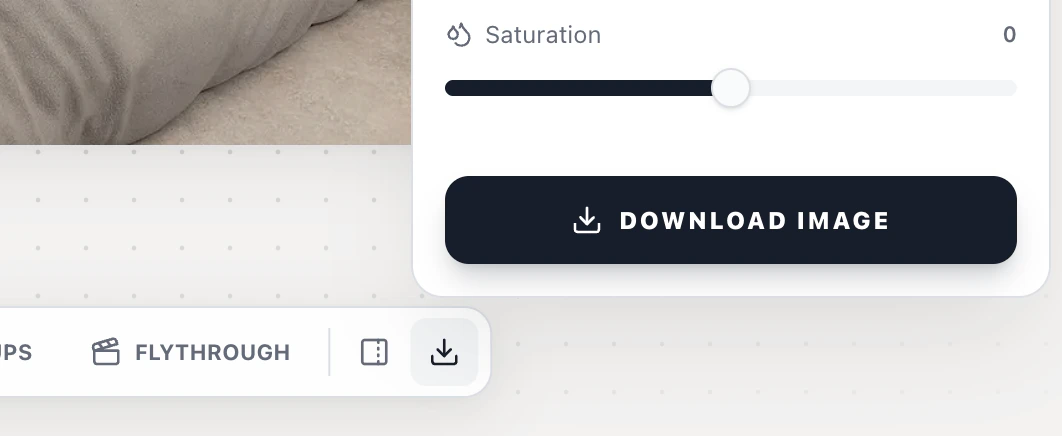
Open the scene, select the version you want, and choose Download in the scene toolbar. Check the image preview, then select Download Image. For several scenes at once, use project export.
On this page
Save one version
- Open your project and select the scene with the finished image.
- Choose the numbered version you want to save. The image on screen should be the one you intend to deliver. A favorite star is optional.
- Choose Download, the down-arrow icon in the desktop scene toolbar.
- Check the preview. If you want the current look, leave the controls as shown. To change the image first, see color correction.
- Select Download Image and open the file from your browser's downloads.
Check the delivered file
Look at the image at full size, especially around glazing, trim and fine textures. If you downloaded two alternatives, give them distinct names, such as bedroom-daylight and bedroom-evening, so the client can tell them apart.
If Download Image is unavailable, check that you opened a completed still image. A finished flythrough has a separate Download Video action. For several scenes or a whole project, use Export PDF or Export ZIP.