
Edit & Refine Renders
Add people and populate a scene
Use Edit → Add People to choose crowd level, people style, and an optional activity for an architectural render, then inspect scale, placement, and design details.
Select a render and open Edit → Add People. Choose One, Couple, Few, or Busy, then Natural, Motion blur, or Silhouette. Add a short Custom direction if useful and select Apply changes. Review the generated people and the surrounding design.
On this page
Show how the space could be used
Use Add People to explore activity and a sense of scale in an interior or exterior render. A few occupants can help communicate a residential room, workplace, lobby, courtyard, or public space.
Start from a render whose architecture and composition are ready to review. Choose the scene and version you want to populate, and keep the unpopulated baseline available for comparison.
Populate the scene
- Select the render and choose Edit.
- Open Add People in the Edit toolbar.
- Choose a Crowd level: One, Couple, Few, or Busy.
- Choose Natural, Motion blur, or Silhouette under People style.
- Add a short Custom direction if you want to describe an activity.
- Select the arrow button labeled Apply changes, then wait for the new version.
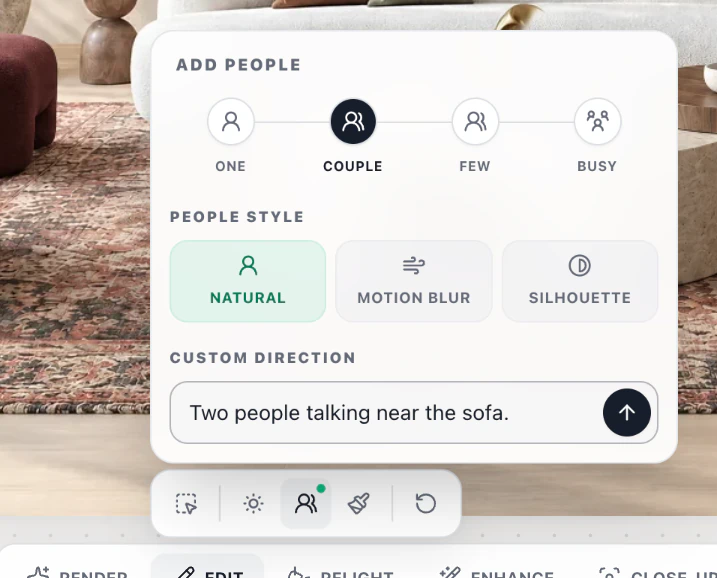
For a simple scale study, start with One and Natural. Check the figure’s height against a nearby doorway before increasing the crowd level. The choices guide the generation; inspect the result for the actual number, scale, and placement of people.
Choose a people style
| Style | When to explore it |
|---|---|
| Natural | People as part of the everyday scene. |
| Motion blur | A sense of movement or activity through the space. |
| Silhouette | Simplified figures when you want the architecture to carry more of the visual detail. |
These are People style choices inside Add People. To change the presentation treatment of the whole render, use Edit → Change Style.
Describe an activity
Use Custom direction for a concise activity and placement request. For an architectural studio, an example is:
Architects reviewing drawings around the meeting table. Keep the doorway and main circulation path clear.
Adapt this example to the visible scene. Choose a crowd level that suits the activity, and avoid conflicting directions such as a busy gathering with an entirely empty room. The example is a starting point, not a promise of exact placement.
For a change to one existing object or a tightly specified area, use an annotation-based edit. Add People is the scene-wide population control.
Inspect the people and the architecture
Compare the edited version with the baseline. Check that figures fit the perspective, relate plausibly to furniture and doorways, and do not hide an entrance, joinery detail, or material you need to present.
Review faces, hands, overlaps, shadows, and reflections as well as the people count. Also check furniture, openings, and circulation for unintended changes. Use the design-preservation checklist when choosing a result.
For another option, return to the same baseline and change one setting or direction. Check the displayed credit amount before generating again, then download the selected version or include it in a client presentation.