
Projects & Presentations
Share a single scene
Send a view-only link to one completed image or video scene and its versions without granting access to the rest of the Vibe3D project.
Open a completed scene, choose Share → Current scene, select General access, and save. Use Copy scene link to send that scene and its versions. This link does not grant access to other scenes.
On this page
Send one scene for review
- Open the completed image or video scene you want the recipient to see.
- Select Share. Under What would you like to share?, choose Current scene. If this option is unavailable, return to the editor and select a completed scene first.
- Under General access, choose Vibe3D users with the link to require sign-in, or Anyone with the link if the recipient has no Vibe3D account.
- Select Save, then Copy scene link. Check the scene number in the dialog before sending it.
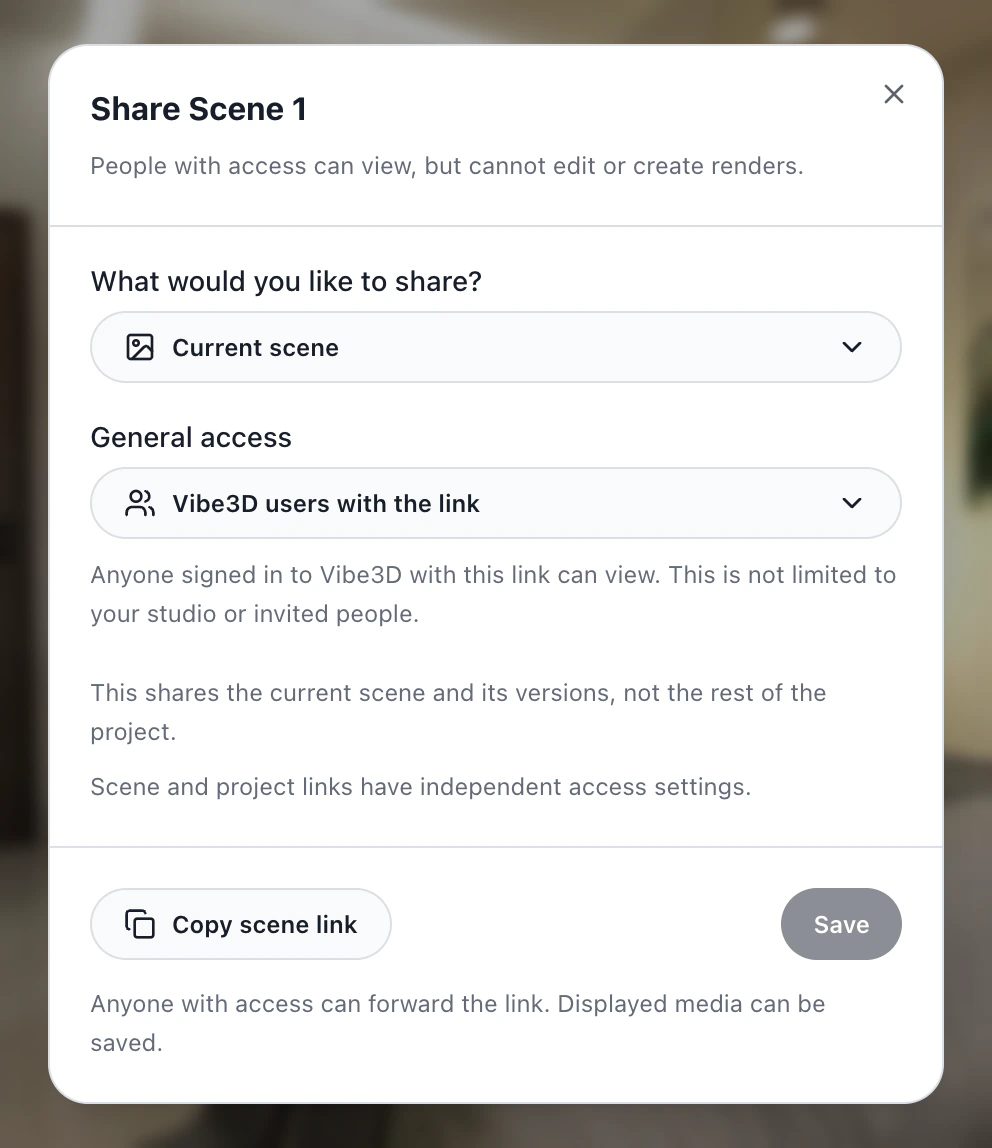
The recipient can view that scene and its versions. They cannot edit the scene or create renders through the link. If they should see just one approved still, download that image instead.
Change or revoke access
Open Share → Current scene again, choose Private, and Save to turn off that scene link. The scene and project have independent settings: if the entire project is shared, its viewers can still see the scene there. Conversely, making the project private does not turn off a scene link you previously enabled.