
Edit & Refine Renders
Explore materials with reference images
Use a reference image in a targeted Vibe3D edit to explore material finishes, compare options from the same source, and check the surrounding design.
In Edit, select a point or area and open Reference → Upload reference. Attach a JPG, PNG or WebP image, optionally describe the finish, and select Submit edit. Same as model is an alternative when the original model source is available.
On this page
Choose a useful reference
A reference image helps communicate a finish that is difficult to describe with words alone. Use it for material variations such as oak cabinetry, stone flooring, upholstery or a façade surface.
Choose a clear sample with consistent lighting. A close view of one material is easier to interpret than a supplier collage containing several products, captions and decorative objects. Use an image you have permission to upload. The reference picker accepts JPG/JPEG, PNG and WebP images.
Decide what the reference should influence: color, grain, surface texture or overall finish. A reference is visual guidance, not a guarantee of exact product matching, repeat scale or color calibration.
Apply the reference to a selected area
- Open the project and select the scene and version you want to modify.
- Choose Edit, then click an element or drag a rectangle around the intended surface.
- Open Reference in the annotation and choose Upload reference.
- Select your material image and wait for the upload to finish.
- An uploaded reference is enough to submit the mark. Add a note when you want just one aspect of the sample, such as its grain direction or sheen.
- Select Submit edit in the comment box. Compare the new version with both the reference and your starting render.
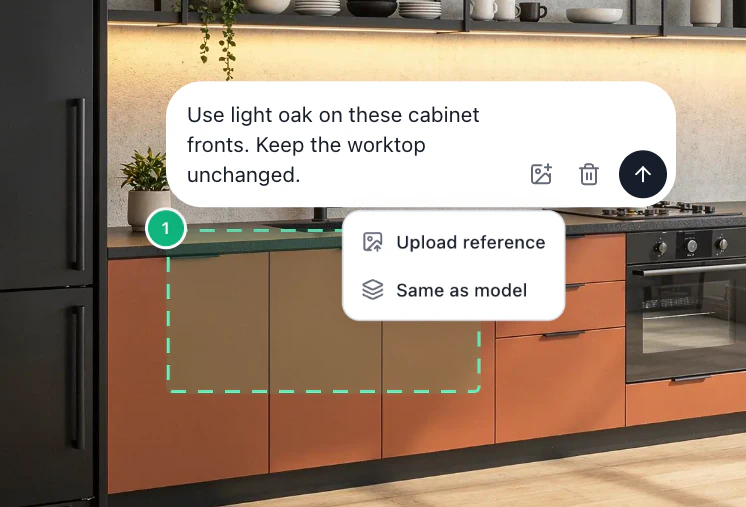
You can detach a reference with Remove reference before submitting. Make sure the reference is attached to the intended annotation when working with several targets.
Example: a light-oak cabinet finish
Select the cabinet fronts and attach a clean oak sample. An example instruction is:
Use the uploaded reference's light-oak color and matte grain on the selected cabinet fronts. Keep the cabinet divisions, handles, worktop, appliances and camera view.
This states the intended material change. It does not establish that a particular image will reproduce the sample exactly. Inspect the grain direction, consistency across doors, handle placement and material boundaries. For a complete comparison workflow, see kitchen material options.
Explore several material options
Start each alternative from the same baseline version, with the same surface selected. Attach one reference at a time and describe the finish you want to compare. For example, compare oak and walnut cabinet fronts while keeping the worktop and surrounding room consistent.
Review each result before preparing the next option. A material change can affect reflections, texture scale, and adjacent edges, so compare the whole image as well as the selected surface. Keep useful versions for a client presentation.
When to use Same as model
The Reference menu also offers Same as model when an eligible original model view is available. Choose it when you want the selected element to follow the material shown in that source. It uses the original image rather than a new swatch. Check the thumbnail before submitting.
If the option is unavailable, use an uploaded reference instead. Check that the original view clearly shows the desired material: a flat white model or a tiny distant surface may not communicate the finish you want restored.
Check the result against the design
Compare the edited image with both the source and the reference. Look for changes to adjacent surfaces, joints, reflections and object dimensions. Return to the baseline if the material request alters an important part of the design.
Use real samples and specifications for final material approval. The image helps a client understand a proposal; it should not replace product selection or construction details. For another attempt, check the app's estimate and credit guidance before submitting.