
A SketchUp AI Render alternative for architects
SketchUp AI Render vs Vibe3D
Keep modeling in SketchUp and bring the views you want to present into Vibe3D. Create realistic 2K+ renders that preserve the reference geometry, camera and materials, revise finishes without image degradation and deliver a project film with music. Versions, favorites and presentation exports stay together. SketchUp AI Render generates beside the active model using the AI credits in an eligible SketchUp plan.
3 free renders · No rendering GPU needed
 Vibe3D render
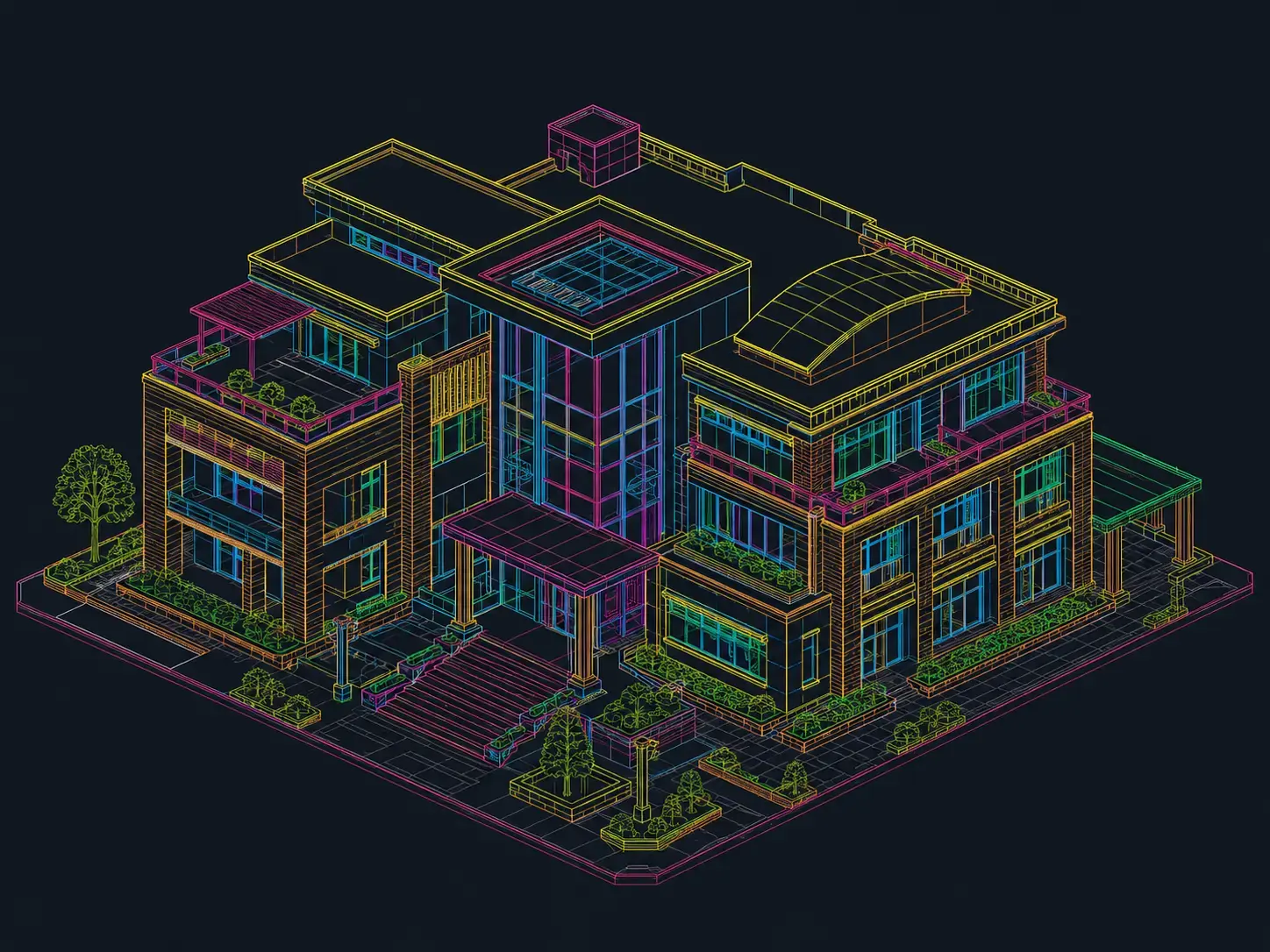
CAD view
- Renders true to your design
- Rich textures and lighting at 2K+, preserving the geometry, camera and materials in your model view.
- Precision edits
- Zero image degradation across revisions. Track versions and keep your favorites.
- A complete client presentation
- Project films with music, live presentations, PDF exports and sharing links.
- No subscription required
- One-time credits that never expire, for occasional projects without a recurring commitment.
A different rendering workflow
Why consider a SketchUp AI Render alternative?
SketchUp AI Render works inside SketchUp, as a desktop extension and through built-in Web and iPad access. Its prompts, references and masks help develop images from the active viewport. Vibe3D accepts exported views in the browser and carries them through rendering, precise revisions and complete presentation delivery. Both leave changes to the underlying model with the designer.
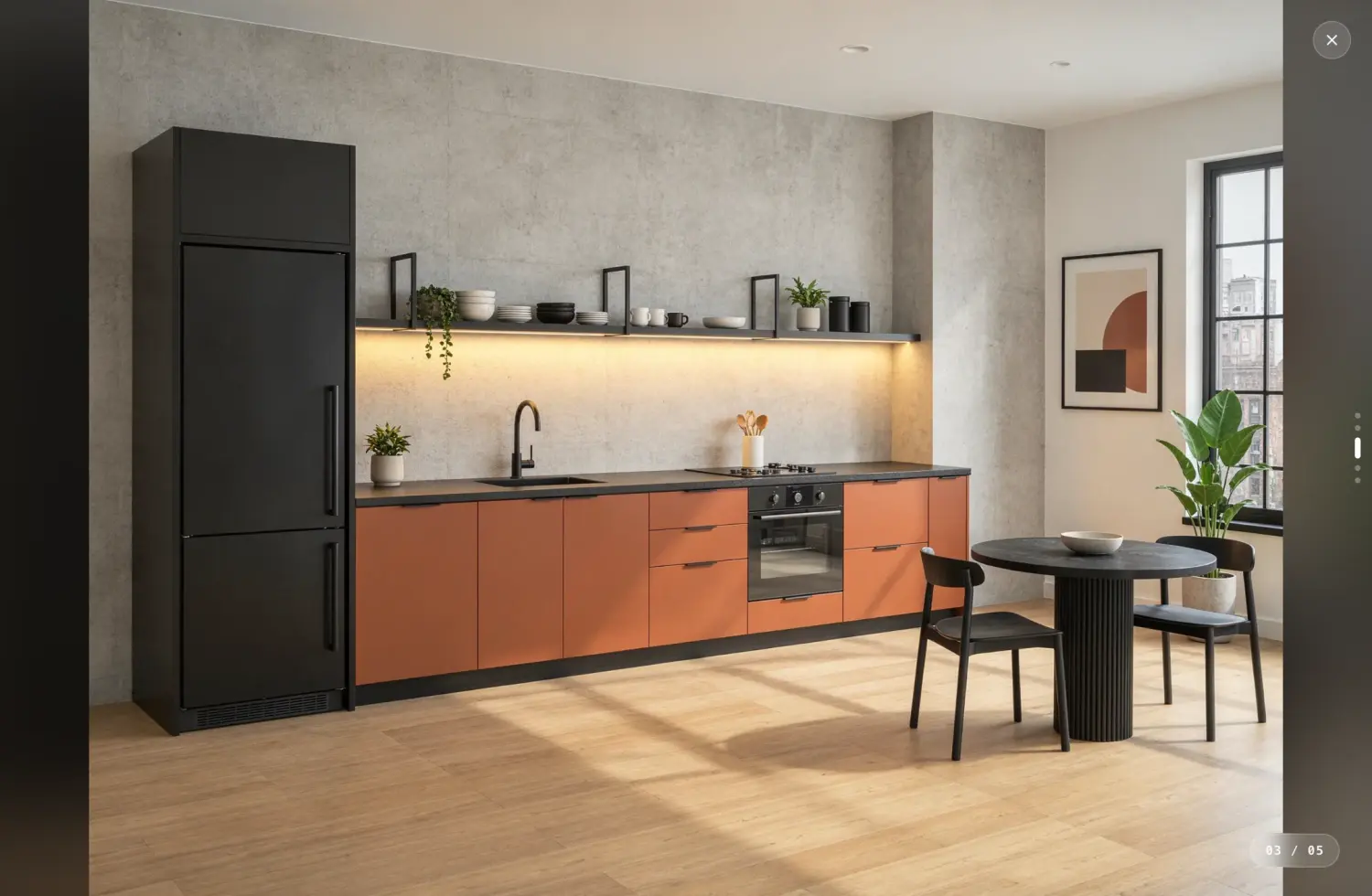
For a kitchen review, save the intended SketchUp camera with the cabinet fronts and worktop clearly visible. Render it in Vibe3D, compare oak and walnut through precise edits and star the chosen version. Add a detail of the joinery, create the evening option and include the room in the project film and PDF.
Side-by-side comparison
Vibe3D vs SketchUp AI Render: core comparison
Compare the starting view, revision controls and final outputs. Browser access and image editing are available in both workflows; the details of how you use them matter.
Swipe across the table to compare both tools →
| What you need | SketchUp AI Render | Vibe3D |
|---|---|---|
| Starting point | Generate from your active SketchUp viewport using a prompt or preset. | Upload a PNG or JPG of a SketchUp view, then render and revise it in the browser. |
| Rendering & image quality | AI-generated images with style references and controls for prompt influence. | Realistic 2K+ output with rich textures and natural lighting, preserving the geometry, camera and materials of the reference view. Fidelity/Lumen render; HyperReal enhances existing renders. |
| Targeted revisions | Mask parts of an image to erase, add or sketch elements. | Precise edits with zero image degradation across revisions. Keep versions within each scene, compare alternatives and star favorites. |
| Lighting & atmosphere | Describe the desired mood through prompts, presets and visual references. | One-click time-of-day changes for interiors and exteriors, interactive lighting for prepared interiors, and exterior weather and surroundings controls. |
| Scene population & details | Use prompts and masked edits to add or revise image elements. | One-click scene population and full-resolution close-up shots from a render. |
| Video delivery | The AI Render documentation reviewed describes image generation and editing; an assembled flythrough with music is not documented there. | Cinematic project films from selected views, with automatic scene assembly and matched music. Download the finished film without separate clip stitching or soundtrack editing. |
| Connection to the model | Works inside SketchUp and can overlay generated output on the model as a scene reference. | Works on exported images. Changes to an image do not update your SketchUp model. |
| Access & credits | Desktop, Web or iPad with an eligible subscription. Go, Pro and Studio include monthly AI credits; AI Render uses 10 per generation. | Export the view to use Vibe3D on a monthly plan or with non-expiring credits. No paid SketchUp plan is required for the upload. |
| Presentation & sharing | Save generated images or overlay them on the SketchUp model as a scene reference. | Present completed scenes live, export a PDF, bulk-download a ZIP or share a view-only project/scene link. Star favorite versions for a curated export. |
This compares documented capabilities and workflows, not measured image quality or rendering speed. Examples on this page were made with Vibe3D.
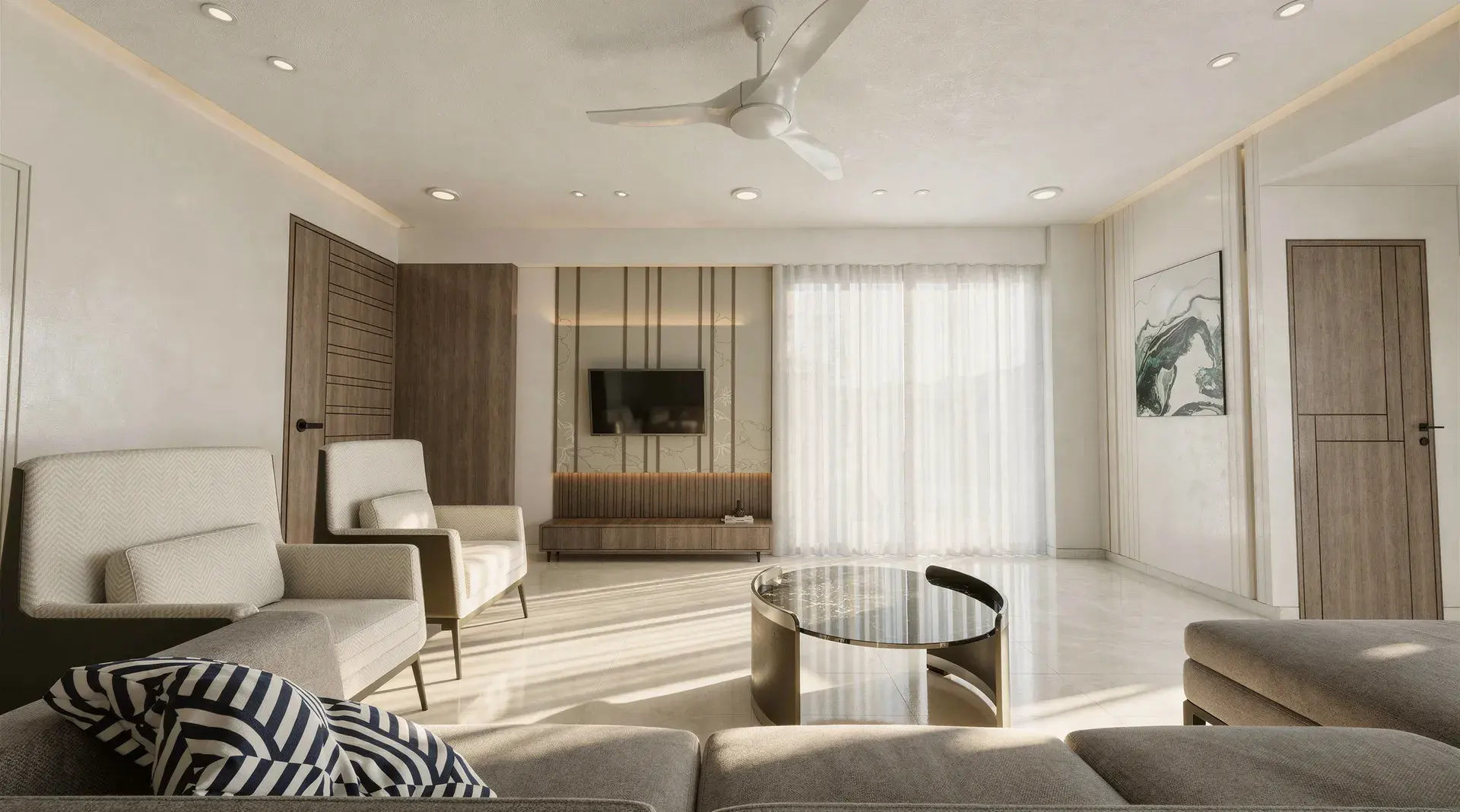
A finish revision in Vibe3D
In this Vibe3D example, the chairs change to sage, the coffee tables take a new shape and the artwork becomes a landscape. Open a 1440 × 960 web image to inspect the finishes.
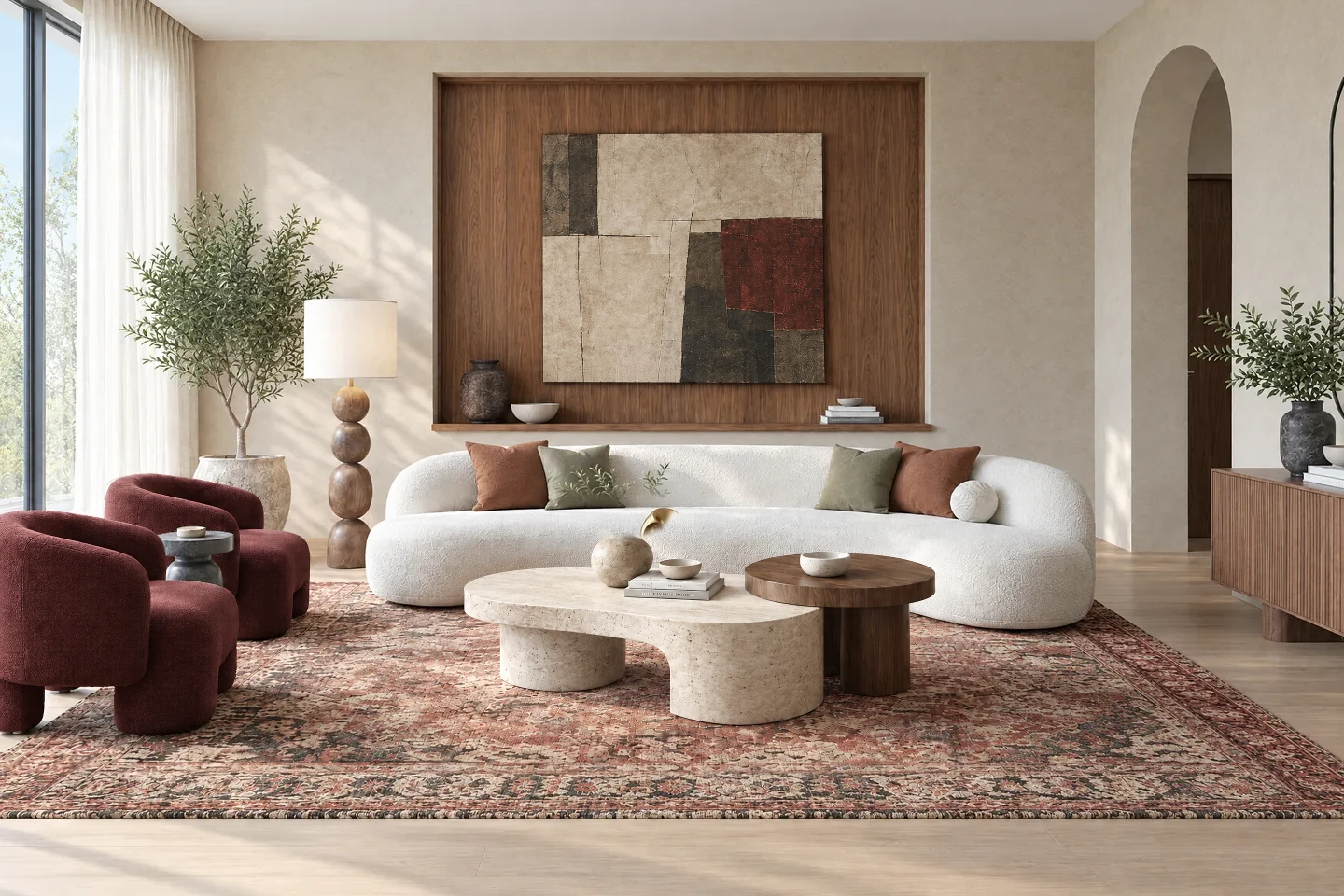 Original render
 Revised chairs, tables and artwork
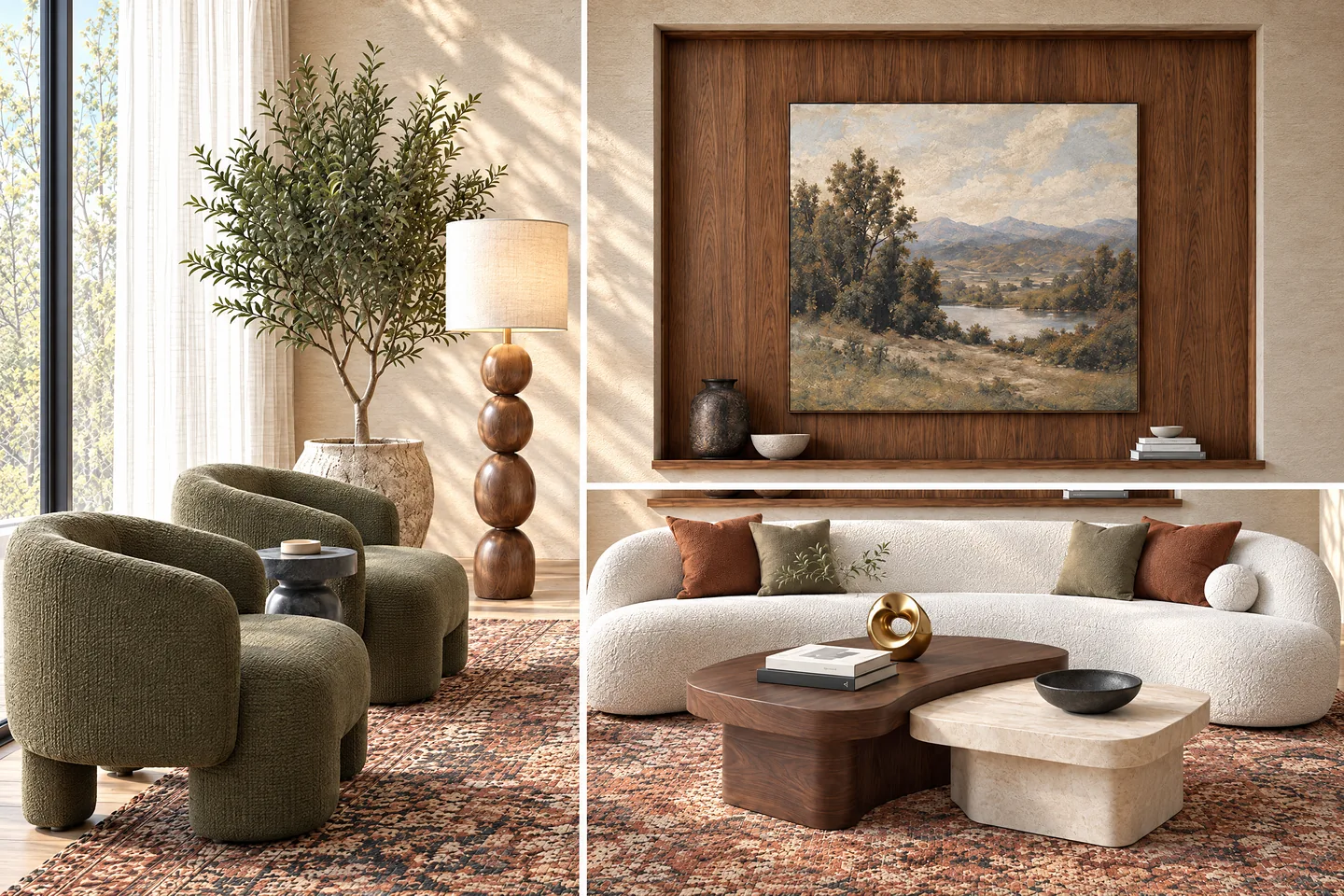 Detail views of the revised room
What each does best
Vibe3D strengths: from model-view fidelity to a finished handoff.
Bring the SketchUp materials into a realistic image
Render the model view at 2K+ by default with rich timber, stone and fabric texture and natural lighting. Preserve the visible geometry, camera and materials as you take the design into its presentation form.
Keep the quality through the cabinet revisions
Select a surface or object for a precise edit with zero image degradation across iterations. Track the versions and favorite the chosen finish, without losing the earlier alternatives.
Show the light, scale and joinery
Use one-click time-of-day options for interiors and exteriors, plus interactive relighting for prepared interiors. Populate the room and generate full-resolution close-ups to show the finishes beside the wide view.
Finish the presentation outside the modeler
Assemble selected renders into a cinematic project film with matched music. Present live, export a PDF, download a ZIP or share a link without manually stitching video clips or building a separate client deck.
Turn the saved kitchen view into the final presentation
Keep modeling changes in SketchUp and manage the rendered alternatives and final handoff in Vibe3D.
Examples made with Vibe3D. Feature access depends on your plan.
Start from the camera you chose in SketchUp
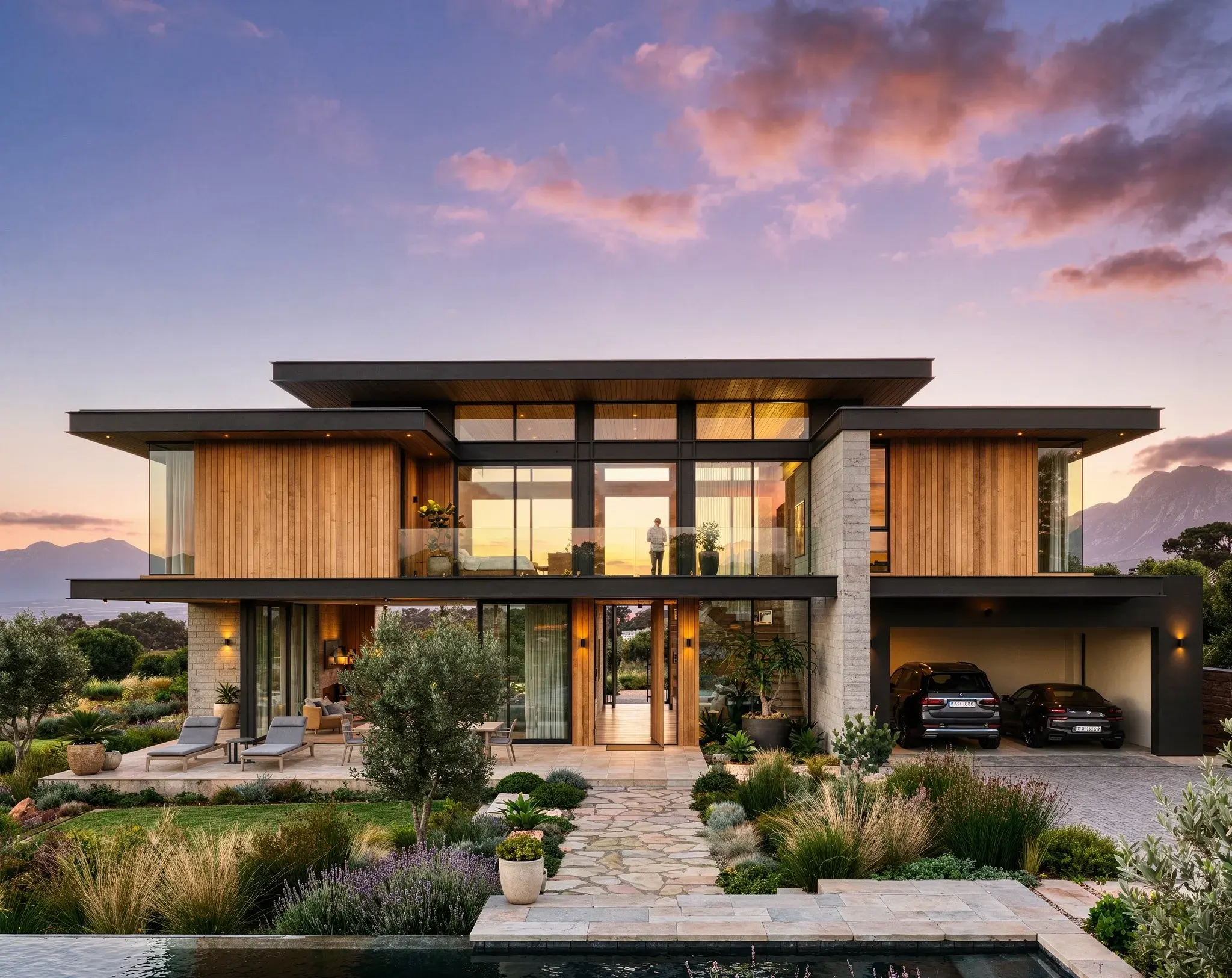
Export a clear view with the important materials visible. Fidelity or Lumen creates a realistic 2K+ render using that composition as the reference, with richer surface textures and natural light.
Explore architectural rendering
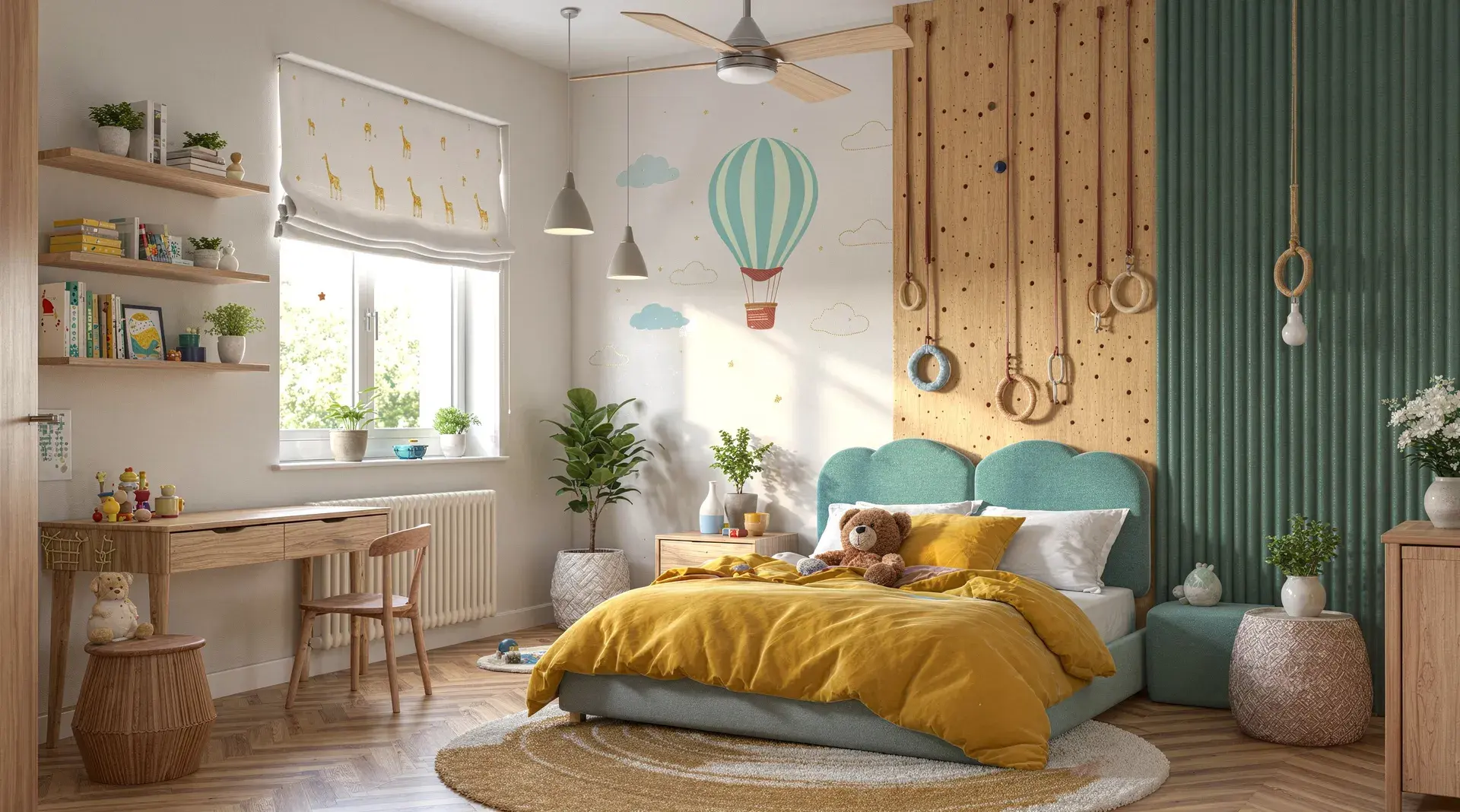
Try the other cabinet finish without rebuilding the image
Select the cabinet faces and describe the change. Precise edits keep image quality intact while versions and favorites retain the decisions. Use lighting controls to compare daylight and evening.
See how targeted edits work
Develop the detail in the selected render
HyperReal Enhance adds a finishing pass to an existing image, bringing out textures, reflections and lighting. Generate a close-up of the chosen joinery for the material review.
Explore HyperReal enhancement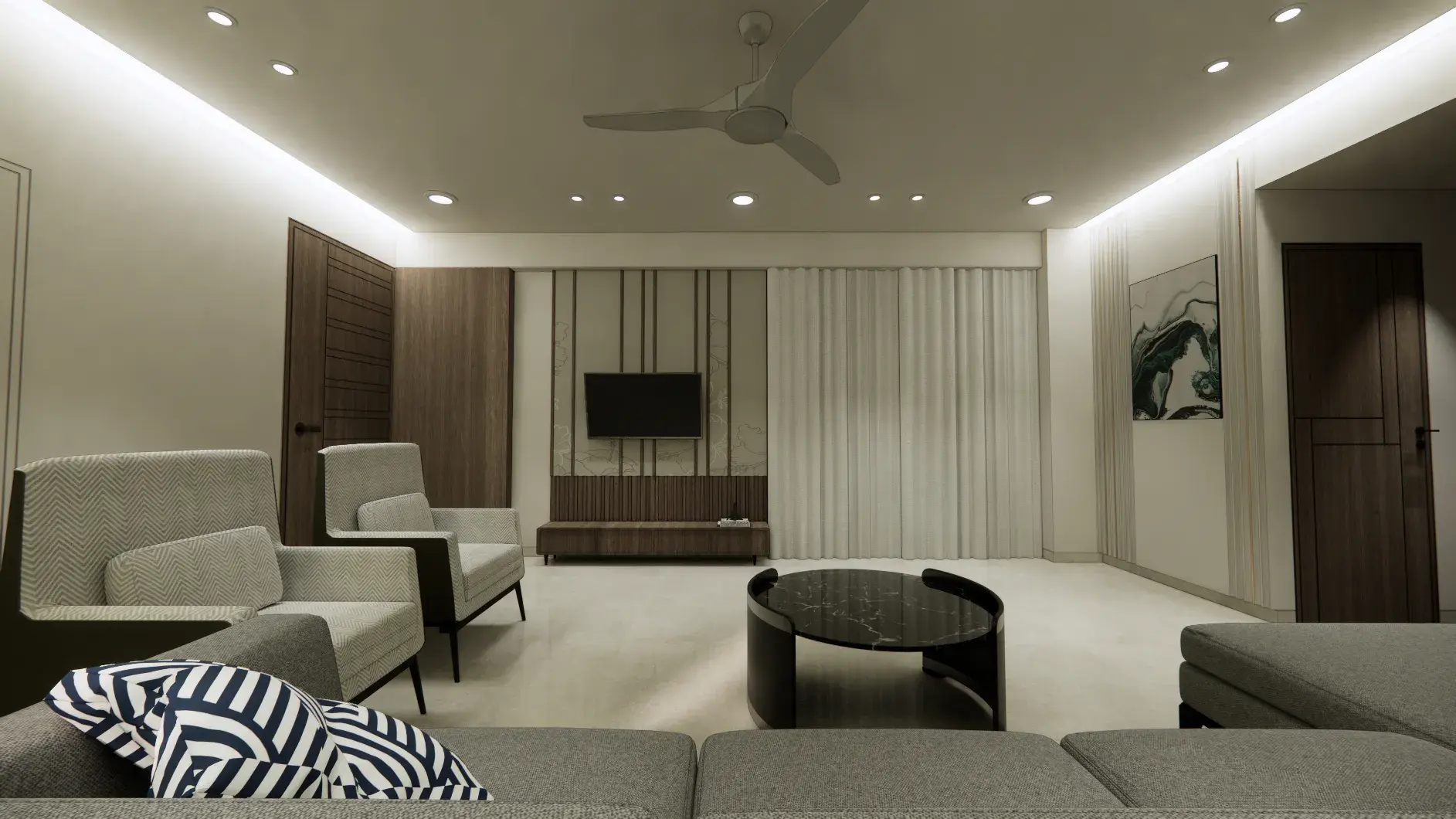
Get more presentation material from each scene

Populate the scene in one click
Add people to make a lobby, living room or shared space feel in use. Build context into the render without a separate compositing pass.

Create close-ups that hold their detail
Generate full-resolution shots of furniture, finishes and architectural details in one click. Give a client the wide view and the details that support the design.
Make the whole project a finished film
Select the kitchen, living room and exterior renders, then choose the movement and order. Vibe3D assembles the cinematic sequence with matched music, ready to download without a separate video-editing application.
Choose the sequence and movement from your selected stills. A generated film does not provide an interactive route through the source 3D model.
Explore project flythroughs
From the SketchUp view to the client’s review set
Keep modeling changes in SketchUp and manage the rendered alternatives and final handoff in Vibe3D.
Save the finish decisions
Compare scene versions and star the chosen cabinet finish. Use Only Starred when exporting the client’s selected images.
Versions and favoritesPresent the spaces together
Open Present for the meeting, export a PDF afterward or download the image set in one ZIP.
Presentations and exportsShare the views for follow-up
Use a scene link for the kitchen or a project link for all scenes and versions. Send a curated PDF when only final choices should be visible.
Project sharingVibe3D vs SketchUp AI Render pricing
Use the AI Render credits in your SketchUp subscription for studies beside the active model. Vibe3D Pro at $39 a month adds a dedicated workflow for precise revisions, relighting, project films with music and live, PDF, ZIP or link delivery. One-time packs offer the same advanced tools for occasional presentations without another recurring commitment.
Vibe3D Pro
$39
/ month · current launch offer
Billed monthly · 300 Vibe3D credits · Commercial use
Your SketchUp design, ready for the client.
- Realistic 2K+ rendering and HyperReal enhancement.
- Precision edits, scene versions and favorites.
- Relighting, population and full-resolution detail shots.
- Project films with music, live Present and PDF/ZIP/link delivery.
SketchUp AI Render
Included
AI credits with Go, Pro or Studio
Paid SketchUp subscription required · Allowance resets monthly
Use the AI credits in your modelling plan before buying additional usage.
- Generate images from the current SketchUp viewport.
- Use prompts, style references and masked edits.
- AI Render shares the monthly allowance with other SketchUp AI tools.
Prices checked November 3, 2026, in USD before tax. Vibe3D Pro, Studio and one-time pack prices shown are launch offers. Each provider sets its own credit rates.
SketchUp AI Render or Vibe3D: which should you choose?
Choose SketchUp AI Render for generation beside the active model. Choose Vibe3D when the job includes detailed finish revisions, a project film and a complete presentation handoff.
Choose SketchUp AI Render to stay with the model
If most of your work is exploring options while modelling, generating from the active viewport can save handoffs. Start with your included credits before paying for another tool, especially if the images already meet your brief.
- Your next render usually follows another change to the SketchUp model.
- Prompts, style references and masked edits cover the revisions you need.
- Your existing SketchUp plan includes enough AI credits for the work.
A new tool should earn its place through the outputs or controls you need, not simply because it also uses AI.
Choose Vibe3D for the finished images and project presentation
The selected camera is ready, but the material decisions and client package still need work. Vibe3D takes those views through precise revisions and delivery without a live model connection.
- Bring the SketchUp materials into a realistic image
- Keep the quality through the cabinet revisions
- Show the light, scale and joinery
- Finish the presentation outside the modeler
Use a monthly plan for regular work or a one-time pack for an occasional project. Unused one-time credits never expire.
Try the workflow on your next review
Export one kitchen view, revise the worktop and compare the material edges with SketchUp. Star the result and make a close-up, then try Present or a PDF of the selected images.
Before you switch
Your questions, answered.
Answers about SketchUp AI Render access, supported platforms, credits and editing, followed by how Vibe3D fits an existing SketchUp project.
Comparing more than two renderers?
Explore top AI rendering softwaresSources & review notes
Published by Vibe3D. Product capabilities reviewed November 5, 2026; plan terms checked November 3, 2026. The visual examples show work produced in Vibe3D.