You've built a clean Blender model. The geometry is solid, the scene is set up, and the client meeting is in the morning. Then Cycles kicks in — samples crawling, denoiser pass, compositing — and what should have been ten minutes of rendering turns into an overnight job.
That's the bottleneck architects and interior designers have worked around for years. In 2026, it's avoidable. Here's exactly how to get photorealistic renders from your Blender models without queuing a single Cycles or Eevee pass.
Why Blender's Built-In Rendering Slows Down Architectural Workflows
Blender is one of the best 3D modeling tools available — and it's free. Cycles produces accurate physically-based renders. Eevee is faster. But both demand something the architectural workflow often can't spare: time and hardware.
A clean interior scene in Cycles at production quality can take 20 minutes to an hour on a mid-range GPU. An exterior with complex lighting, sky HDR, and reflective surfaces can push past that. Multiply by the number of camera views in a project, add revision rounds, and the render queue becomes a client-management problem, not just a technical one.
There's also the setup cost: GI settings, light bounces, denoiser thresholds, compositing nodes. Getting a Cycles render to look right requires genuine expertise. For architects who are excellent at design, that expertise is a tax on their time.
The render queue was never really a Blender problem. It was a workflow problem.
The Alternative: Export from Blender, Render with AI
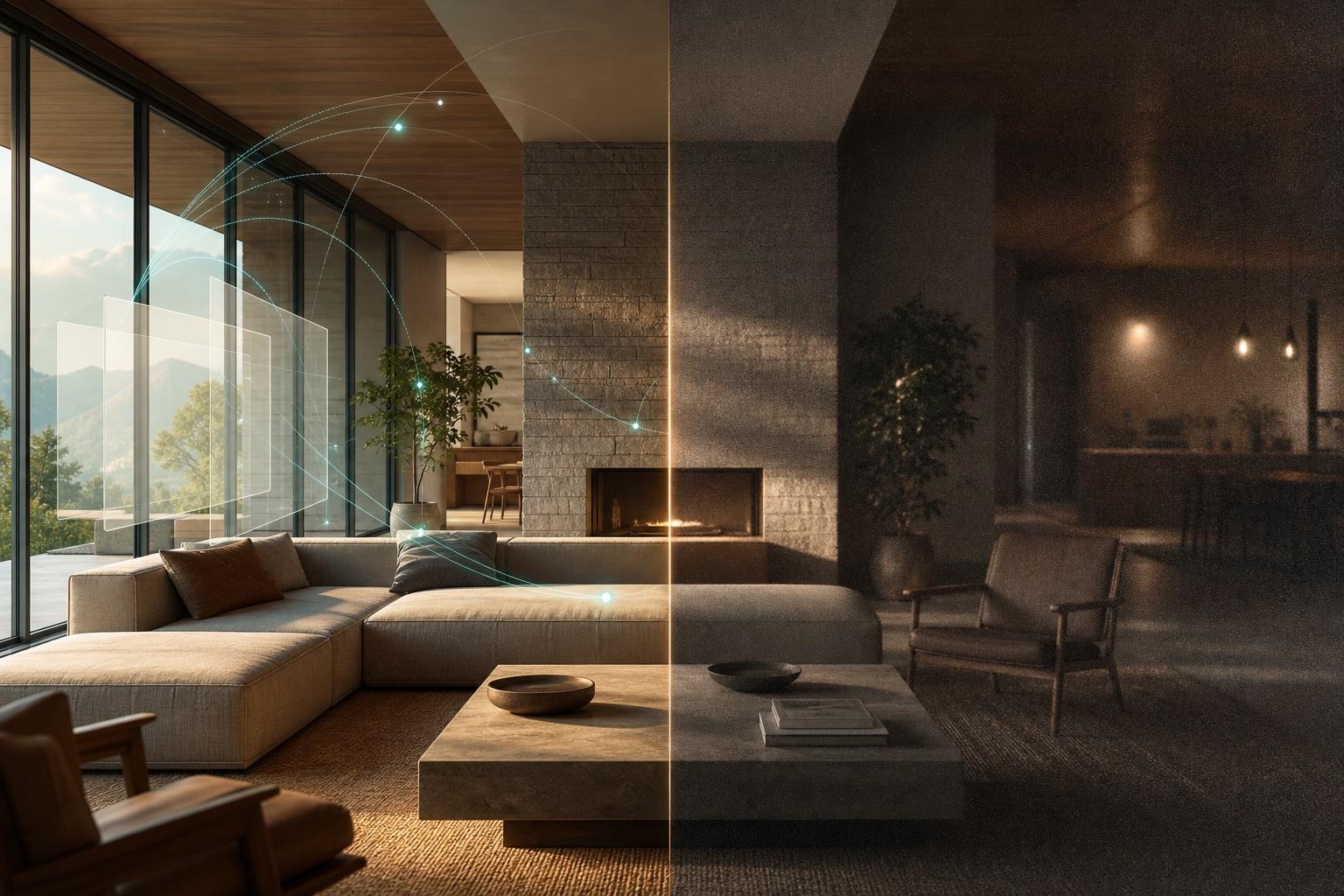
The 2026 approach decouples modeling from rendering. You build and compose in Blender, export each camera view as a standard image file, and upload to a cloud-based AI renderer. The AI handles the lighting interpretation, material response, and photorealistic output. You get the render back in under 60 seconds.
Vibe3D is built for this workflow. You export each camera view from Blender as a PNG or JPG image and upload it to Vibe3D's browser-based studio. The AI processes the image against a model trained on architectural and interior scenes and returns a photorealistic render. No shader setup, no light path configuration, no render farm.
This is distinct from using AI inside Blender (add-ons, generative tools). Vibe3D is an external AI rendering layer that replaces the Cycles/Eevee output step for architectural visualization specifically. If you're curious about the broader category of AI tools available for Blender, the AI for Blender guide covers that in full.
Step-by-Step: Blender to Photorealistic Render in Four Steps
Step 1: Set Up and Frame Your Camera Views in Blender
Before exporting, finalize your camera positions. For architectural projects, plan the views the same way you would for a client presentation: at least one establishing shot, a key interior or exterior angle, and any detail views.
Blender's camera binding (Ctrl+Numpad 0) locks a view to a specific camera object. Set one camera per deliverable, name them clearly, and save each view as a scene. This makes batch exporting much faster.
Step 2: Export Each View
The most direct method for Vibe3D is exporting a high-quality viewport render or preview render from Blender. You don't need to run a full Cycles pass — a viewport capture at a reasonable resolution (1920×1080 or higher) gives the AI enough geometric and material context to work from.
Go to Render → Render Image with Eevee as the engine for speed (30–60 seconds per frame), or use the Viewport Render Image option. Save as PNG. This becomes the input for Vibe3D's AI.
A few Blender render output settings to get a clean image:
| Setting | Recommended |
|---|---|
| File Format | PNG |
| Color Mode | RGB |
| Color Depth | 8 or 16 bit |
| Color Space | sRGB |
| Resolution | 1920 × 1080 minimum |
Step 3: Upload to Vibe3D and Let the AI Read the Scene
Go to app.vibe3d.ai and upload your exported file. The free tier gives you three renders with no credit card required.
Vibe3D's AI reads your scene's architectural context automatically — it distinguishes interior from exterior, interprets spatial relationships, and sets up realistic lighting based on geometry. You don't configure anything. You select a visual style (time of day, mood, lighting direction) and generate.
For exterior work, the AI handles sun angle, shadow depth, and material response to sky light. For interiors, it manages ambient occlusion, surface reflectivity, and depth. The output comes back in under 60 seconds.
Step 4: Iterate by Typing
The render lands. The client wants dusk instead of midday. The cladding should be warmer. The glazing needs a different tint.
Type the instruction. The AI applies it and returns a new render. No going back into Blender, no re-exporting, no re-rendering. This is the part that changes how architectural presentations work — you can iterate during the meeting.
Cycles vs Vibe3D: A Direct Comparison
| Cycles (Blender) | Vibe3D AI | |
|---|---|---|
| Render time (architectural scene) | 20 min – 4 hrs | Under 60 seconds |
| Hardware required | Dedicated GPU (recommended) | Any browser on any device |
| Setup for photoreal output | HDR lighting, shader nodes, denoiser config | Upload → select style → render |
| Text-driven scene editing | No | Yes |
| Flythrough video | Via animation render (slow) | Yes, from static renders |
| Starting price | Free (Blender is free) | Free (3 renders, no card) |
| Commercial license | n/a | Yes, included on all plans |
Cycles is still the right tool when you need precise physical accuracy — product renders, complex caustics, material science. For architectural visualization — exteriors, interiors, presentation stills — the Vibe3D workflow produces comparable photorealism in a fraction of the time.
HyperReal Mode: When a Standard Render Isn't Enough
For most client presentations, the standard photorealistic output is exactly what you need. For marketing materials, property listings, or competition submissions, Vibe3D's HyperReal mode adds another layer.
HyperReal delivers micro-texture detail: grain in concrete, variation in timber, the way light wraps around a curved wall. Combined with one-click AI upscaling and HDR output, the final asset is ready for print or large-format display. The difference is most visible in how HyperReal handles sky, shadow gradients, and reflective surfaces on architectural exteriors.
From Static Render to Cinematic Walkthrough
One advantage of Vibe3D over Blender's animation pipeline for architectural work is video generation. Vibe3D generates cinematic flythrough videos from static renders — no camera path setup, no frame sequence export, no video editing software.
For Blender users, this matters because getting a polished architectural walkthrough out of Blender traditionally meant either a very long animation render queue or a separate application. With Vibe3D, the flythrough comes from the same upload that produced your stills.
Who This Workflow Is For
Small studio architects and independent designers get the most immediate benefit. This removes the specialist bottleneck — you don't need a dedicated visualization artist, and you don't need to master Cycles to produce client-ready output.
Freelance 3D artists using Blender gain a speed advantage on throughput. More projects in the same time, with a commercial license included on all plans.
Students get a $9 one-time credit pack (50 credits) with a valid .edu or .ac email. No monthly commitment.
If you want to test the workflow, start with the free tier at vibe3d.ai — three renders, no credit card, no Blender plugin required.
Frequently Asked Questions
Do I need to run a full Cycles render before uploading to Vibe3D? No. A viewport render from Eevee (30–60 seconds) or a viewport capture gives the AI enough context. You don't need to queue a production-quality Cycles pass.
Can I use my existing Blender materials and textures? Yes — indirectly. When you render or capture a viewport from Blender, your material assignments and textures are already baked into the image. Vibe3D's AI reads the rendered image and interprets the colors, surfaces, and spatial relationships it sees. You don't need to export or convert any texture files separately.
Do I need to install anything in Blender? No. Vibe3D is entirely browser-based. You export from Blender as you normally would and upload to the web app. No Blender add-on, extension, or plugin required.
How does this compare to using Eevee instead of Cycles? Eevee is faster than Cycles but still requires setup (lighting, probes, shader nodes) and doesn't produce the same photorealistic depth for client presentations. Vibe3D's AI consistently produces more realistic output than a standard Eevee pass, in a comparable or shorter amount of time.
Are the renders commercially licensed? Yes. All Vibe3D plans include a commercial license for renders produced on the platform.
Does this work for exterior architectural renders, not just interiors? Yes. Vibe3D's AI handles both interior and exterior architectural scenes. For exterior work, the guide to photorealistic exterior rendering shows how the output handles facades, landscaping, and sky.
What's the difference between this blog and the AI for Blender guide? This guide covers the practical rendering workflow — how to export from Blender and get a photorealistic render using Vibe3D. The AI for Blender page covers the broader topic of AI tools available for Blender artists, including how Vibe3D fits into that category.