The best 3D rendering software in 2026 depends on your deliverable: V-Ray or Corona for production-quality hero images, Enscape or Twinmotion for real-time walkthroughs and VR, and AI-native tools like Vibe3D, Chaos Veras, or Gendo when you need photorealistic client renders straight from a model, without render-engine setup. This guide focuses on architectural and ArchViz use, comparing 12 tools across all three categories so you can match the tool to the job.
Key takeaways
- The market split into three categories in 2026: AI-native, real-time, and offline renderers — each trades speed, quality, control, and cost differently.
- Highest quality: V-Ray and Corona (offline path tracers) still set the benchmark for print and competition work.
- Fastest to a client image: AI-native tools generate photorealistic output from a model upload in minutes, no GPU or render config.
- Best real-time/VR: Enscape (BIM-integrated) or Twinmotion (free, Unreal-based).
The rendering decision used to be simple. Pick V-Ray or Maxwell, wait overnight, deliver. That world is gone. The market has split into three distinct categories: AI-native tools that generate photorealistic output directly from a model upload, real-time engines that prioritize interactive walkthroughs over final-frame quality, and traditional offline renderers that still anchor high-end studio pipelines.
This guide covers 12 tools across all three categories — written for practicing architects and ArchViz professionals who already know what GI, path tracing, PBR, and BIM mean, and who need to make a defensible software decision.
The Three Categories That Define Rendering in 2026
Understanding the structural split matters before comparing individual tools.
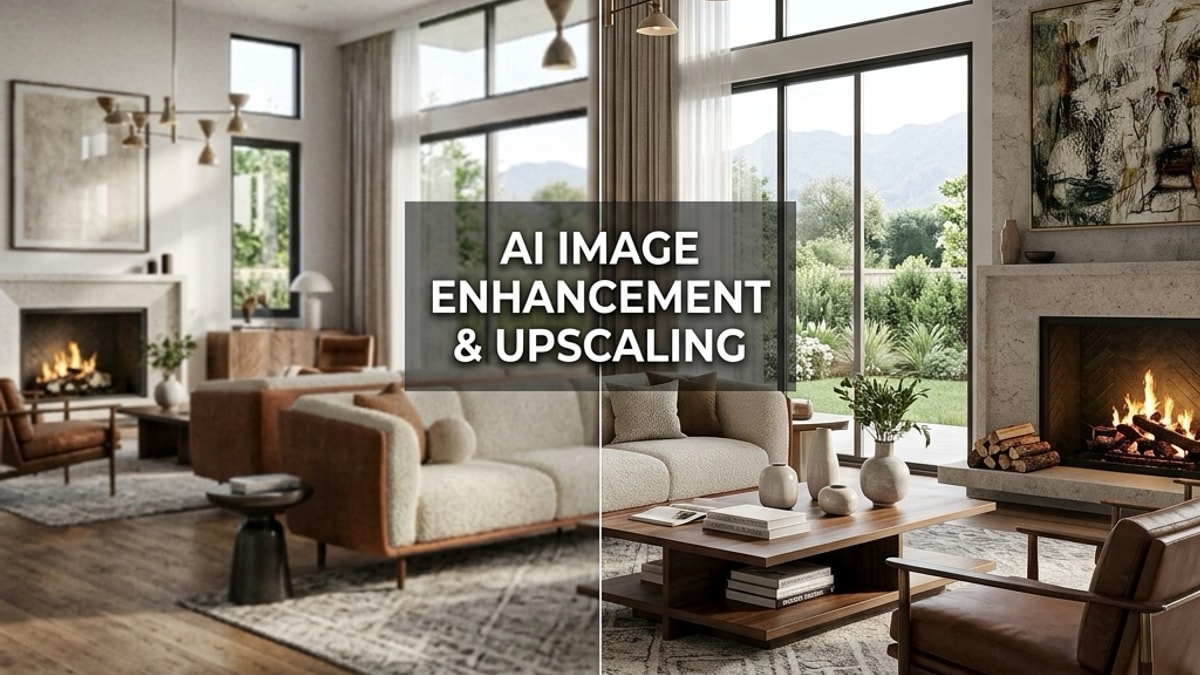
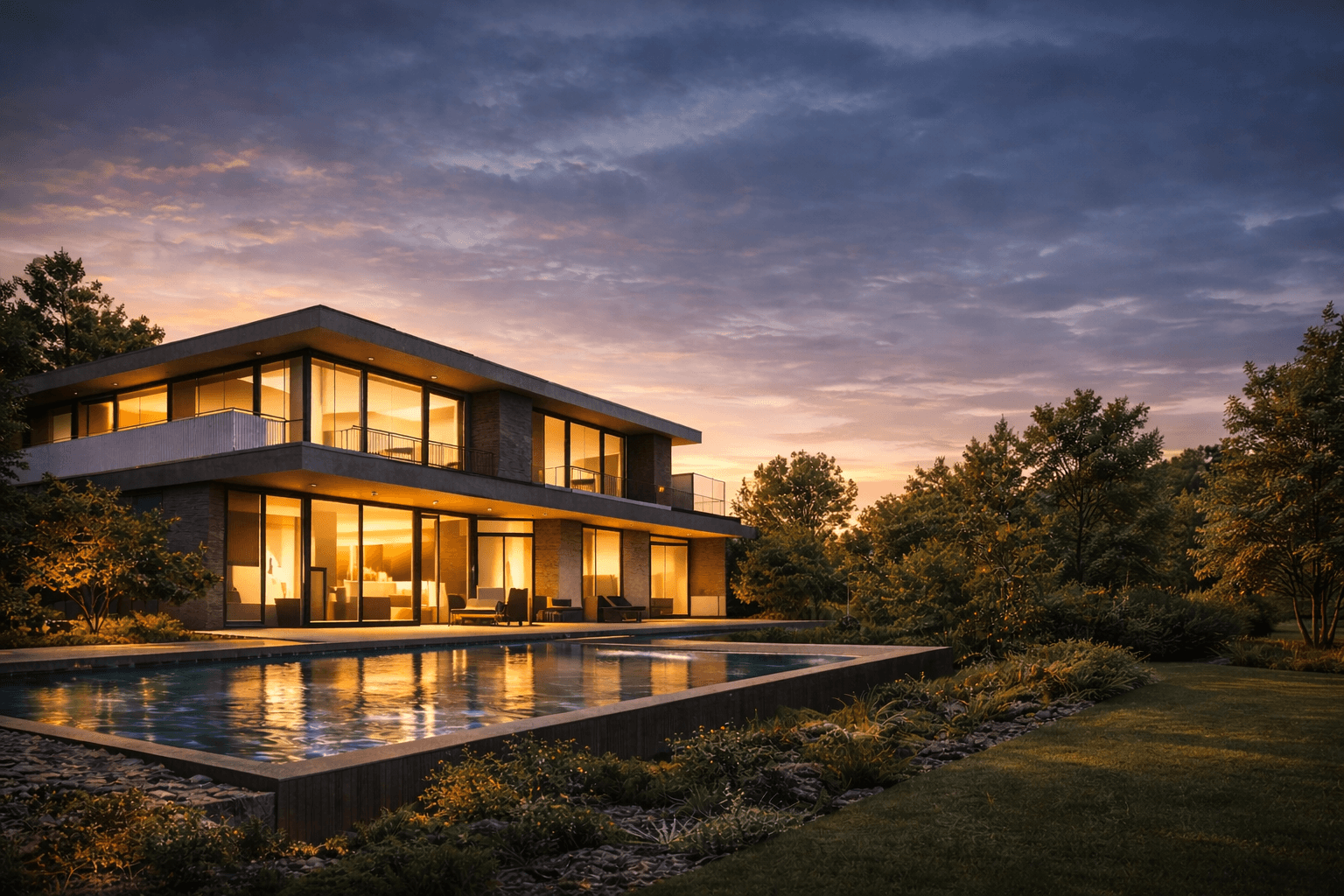
AI-native renderers accept a 3D model and produce photorealistic output automatically — handling material inference, lighting, and context detection without requiring render engine configuration. Speed is measured in minutes, not hours.
Real-time engines (Enscape, Lumion, Twinmotion) render continuously as you design. They trade some final-frame quality for instant feedback and interactive walkthroughs. GPU-dependent, but increasingly capable.
Offline/production renderers (V-Ray, Corona, KeyShot, Artlantis) use CPU or GPU path tracing with full GI, caustics, and physically accurate light transport. Highest-quality stills, but deep configuration and long render times come with the territory.
The right answer depends on your deliverable, your timeline, and your client.
Best AI Rendering Tools for Architects in 2026
This is the fastest-moving segment of the market, and the one most guides skip past or lump into a single "AI features" footnote. It deserves closer attention, because AI-native rendering doesn't work like a render engine with an AI filter bolted on — it's a different pipeline entirely.
How AI-Native Rendering Actually Works
A traditional renderer needs you to tell it everything: which surfaces are glass, where the lights go, what the walls are made of, how the sun should fall across the facade. An AI-native tool infers most of that instead.
When you upload a model, the system runs context detection first — segmenting the geometry into architectural elements it recognizes (walls, roof, glazing, structural members, landscaping) rather than treating the file as an undifferentiated mesh. That segmentation is what lets it apply plausible materials and lighting without you manually assigning either.
Material inference follows: the AI predicts likely real-world materials from geometry, naming conventions, and visual cues in the source file, then renders with physically-based properties for those materials rather than a flat placeholder texture. This is why AI-native output can look finished straight off an upload, while a traditional render starts as a grey-box scene until someone assigns materials by hand.
The trade-off is control. You're accepting the model's interpretation of your design rather than directing every material and light source yourself. For early-stage concept renders and client presentations, that trade is usually worth it. For a hero image where a specific material or lighting mood is non-negotiable, it can work against you — which is exactly why one-click text-based scene editing (offered by Vibe3D and, to a lesser extent, Gendo) matters: it's the mechanism for correcting the AI's interpretation without dropping back into manual node graphs.
Where AI-Native Tools Still Fall Short
Three honest limitations, regardless of which AI-native tool you pick:
- Resolution ceiling. Most AI-native output targets screen and presentation resolution, not print. If you need a poster-sized competition board, you'll likely still finish in an offline renderer.
- Complex massing ambiguity. Context detection can misread unusual or highly irregular geometry — the AI's guess about what a form "is" gets less reliable as the design departs from conventional building typologies.
- No manual override for exotic lighting. If a project genuinely needs a custom lighting rig (a specific time-of-day study, an unusual artificial-light scenario), most AI-native tools don't expose the manual GI controls to do it — you're working within what the model can infer.
None of these are disqualifying for the segment's core use case — fast, good-enough renders for iteration and client communication — but they're why AI-native tools sit alongside offline renderers in most practices' toolkits rather than replacing them outright.
Vibe3D
Positioning: Browser-native, zero-prompt, no GPU required.
Vibe3D accepts uploads from SketchUp, Revit, Blender, and other common formats. The AI automatically detects architectural context — identifying walls, glazing, structural elements, and spatial relationships — and produces photorealistic renders without any prompt engineering or render engine configuration. Upload a model, the AI interprets it, you get output.
The one-click scene editing is a genuine differentiator. Type what you want changed ("add evening lighting," "switch the floor to polished concrete") and the AI applies it directly to the rendered scene. No re-render queue. No material node graphs.
Because it runs entirely in the browser, there's no local GPU requirement. That matters for architects on standard workstations or laptops without a dedicated render card, and for studios that want to run client-facing sessions without hardware constraints.
Ideal for: Architects who need fast, high-quality renders for client presentations and project submissions without committing to a render engine. Studios looking to cut per-project rendering time without adding specialist ArchViz staff.
Limitation: Not designed for ultra-high-resolution print output or fully custom lighting rigs requiring manual GI configuration.
Chaos Veras
Positioning: BIM-native AI rendering with deep Revit and SketchUp integration.
Veras integrates directly into Revit, SketchUp, Rhino, and ArchiCAD as a plugin. It uses a diffusion-based approach that reads your model's geometry and generates photorealistic images from it. Recent updates have improved material coherence noticeably — particularly for glazing and metal surfaces.
The Chaos ecosystem integration is a real advantage if you're already on V-Ray or Chaos Cloud. Veras shares licensing infrastructure with the broader Chaos suite.
Limitation: Pricing sits at the premium end of the AI rendering segment, bundled into Chaos subscriptions that many smaller practices find hard to justify. Output quality can be inconsistent on complex massing models where the AI struggles with spatial depth.
Ideal for: Large practices and BIM-heavy studios already invested in the Chaos ecosystem.
Gendo
Positioning: Collaborative AI rendering platform for design teams.
Gendo is designed around team-based rendering workflows — enabling design teams to generate, share, and iterate on photorealistic renders collaboratively. Fast, clean output for architectural scenes, with a focus on making AI rendering accessible across a studio rather than just to a single specialist.
Limitation: Gendo's paid tiers sit at the premium end of the AI rendering segment (check their site for current pricing), which is harder to justify for solo practitioners or small practices without a clear team-based use case.
Ideal for: Collaborative design studios and teams that need a shared AI rendering environment and can justify the higher monthly cost.
Lumion AI
Positioning: Real-time engine with AI-assisted material and scene enhancement.
Lumion's AI features — introduced progressively through 2025–2026 — focus on material auto-assignment and scene population rather than full render generation. It remains primarily a real-time engine with AI layered on top, not an AI-native renderer.
Limitation: Lumion's ray tracing implementation still has GI quality constraints compared to offline renderers. For final-frame stills requiring accurate indirect lighting and caustics, the output shows its real-time heritage.
Ideal for: Architects who need fast walkthroughs and animated presentations and accept a quality ceiling in exchange for speed.
Twinmotion Path Tracing
Positioning: Unreal Engine-based path tracing, now free for architects.
Twinmotion went free in 2025, which dramatically expanded its user base. Its path tracing mode — powered by Unreal Engine 5's Lumen and hardware ray tracing — produces genuinely high-quality final frames.
Limitation: Path tracing in Twinmotion requires significant denoising time, and the denoising pipeline introduces artefacts on fine architectural detail: mullion grids, perforated screens, fine timber battens. It's not suitable for real-time client sessions — path tracing mode is a batch process, not an interactive one. You also need a current-generation RTX card for acceptable performance.
Ideal for: Studios with capable GPU hardware that want high-quality stills and animations and can tolerate a render queue.
The clearest differentiator in 2026 is not render quality — it's where the complexity lives. AI-native tools move it off your desk entirely.
Traditional Offline Renderers: Still the Quality Benchmark
For hero images, competition entries, or print-resolution output, offline renderers remain the reference standard.
V-Ray (Chaos)
V-Ray is still the most widely used production renderer in architectural practice. Its hybrid CPU/GPU mode (V-Ray GPU CUDA and RTX) has matured significantly, and Chaos Cloud integration means you can offload heavy scenes without maintaining local render farm hardware.
V-Ray's material library, HDRI lighting controls, and support for complex GI scenarios — interior scenes with multiple light sources, caustics through glazing — are unmatched in the production segment. The learning curve is real. Configuring a V-Ray scene correctly takes expertise. But the output ceiling is the highest in the market.
Ideal for: High-end studios and ArchViz specialists producing final-frame stills and animations for publication, competition, or large-scale client presentations. (If V-Ray's cost or learning curve is the issue, see our V-Ray alternatives guide.)
Corona Renderer
Corona uses unidirectional path tracing with a notably clean, physically accurate output that many architects prefer for its natural light quality. The interactive rendering (IR) mode lets you see changes in near-real time during scene setup, which reduces the configuration friction that makes V-Ray intimidating for occasional users.
Corona is CPU-first, so render times on complex scenes run longer than GPU-accelerated alternatives. The Chaos acquisition has brought it closer to V-Ray's ecosystem, including Chaos Cloud support.
Ideal for: Architects and small studios who want production-quality output with a gentler learning curve than V-Ray.
KeyShot
KeyShot uses a real-time ray tracing approach that sits between offline and real-time categories. Fast to set up, clean PBR-accurate output, and particularly strong for product and furniture visualization.
For full architectural scenes with complex exterior lighting and landscape, KeyShot's environment controls are less sophisticated than V-Ray or Corona. It's better suited to interior vignettes, furniture studies, and material presentations than full building renders.
Ideal for: Interior designers and product-focused practices who need fast, clean material studies.
Artlantis
Artlantis is a standalone renderer with a long history in architectural practice. Less technically demanding than V-Ray, solid output for mid-complexity scenes. In 2026, it occupies the space between real-time engines and full production renderers — capable enough for client presentations, not quite at the quality ceiling of V-Ray or Corona.
Ideal for: Small practices that want offline render quality without the V-Ray learning investment.
Real-Time Engines: Speed Over Perfection
Real-time engines have changed how architects present work in progress. Walking a client through a design in real time — adjusting time of day, swapping materials, changing viewpoints — is something no offline renderer can match.
Enscape
Enscape integrates directly into Revit, SketchUp, Rhino, ArchiCAD, and Vectorworks as a plugin, rendering continuously as you work with no export step. The VR output is the best in its category for architectural use — stable, low-latency, and compatible with standard headsets.
Enscape's 2026 subscription pricing has increased, pushing some smaller practices toward free alternatives. For BIM-integrated real-time rendering, though, it remains the benchmark. (See our deeper Enscape alternatives comparison and a head-to-head on Vibe3D vs Enscape.)
Ideal for: Architects who want live rendering inside their BIM or CAD environment and present via VR walkthroughs.
Lumion
Lumion's strength is speed of scene composition. Its asset library — trees, people, furniture, vehicles — is extensive, and the one-click style presets let you move from a grey-box model to a finished presentation render in under an hour. The output has a characteristic look: slightly stylized, with strong atmospheric effects, that clients tend to respond well to.
Lumion's ray tracing mode improved in 2025 but still has GI accuracy limitations for complex interior scenes. For exterior massing studies and site presentations, it's hard to beat on speed. (For more options in this space, see our Lumion alternatives roundup and Vibe3D vs Lumion.)
Ideal for: Architects who need fast, visually polished presentations and prioritize turnaround time over photorealism.
Twinmotion
Now free for architects and designers, Twinmotion has become the accessible entry point for real-time rendering. Its Unreal Engine 5 foundation gives it a high quality ceiling, and the Datasmith import pipeline handles Revit and SketchUp files reliably.
The free pricing makes it the default recommendation for practices that can't justify Enscape or Lumion subscriptions. The trade-off is a steeper learning curve and more complex scene setup than either of those tools. (See more options in our Twinmotion alternatives roundup.)
Ideal for: Practices that want real-time rendering capability without subscription cost and have the time to invest in learning the workflow.
How to Choose: A Decision Framework
The right tool comes down to four variables: deliverable type, timeline, team expertise, and hardware.
If your primary deliverable is client presentation stills and you need them fast: Start with an AI-native tool. Vibe3D's 3D Rendering handles the full pipeline from model upload to photorealistic output without requiring render engine expertise. For practices without a dedicated ArchViz specialist, it's the most direct path to professional-quality output.
If you need real-time walkthroughs or VR: Enscape if you're BIM-heavy and budget allows. Twinmotion if you want capable output at no software cost. Lumion if speed of scene composition is the priority.
If you're producing hero images for competition or publication: V-Ray or Corona. Accept the learning curve and render time — the quality ceiling justifies it.
If your team needs a collaborative AI rendering environment across multiple designers: Gendo offers a shared platform, though its paid tiers sit at the premium end — assess whether the team collaboration features justify the cost vs. a tool like Vibe3D that handles multi-format uploads without a per-seat premium.
If you're already in the Chaos ecosystem: Veras integrates cleanly and shares licensing with V-Ray. Quality is consistent when your models are well-structured.
The question isn't which tool is best. It's which tool is best for the deliverable you're producing this week.
Rendering Software Comparison at a Glance
| Tool | Category | GPU Required | BIM Integration | AI-Native | Best For |
|---|---|---|---|---|---|
| Vibe3D | AI-native | No | Yes (Revit, SketchUp) | Yes | Fast client renders, no render engine |
| Chaos Veras | AI-native | No | Yes (Revit, SketchUp, Rhino) | Yes | Chaos ecosystem users |
| Gendo | AI-native | No | Yes | Yes | Collaborative design teams |
| V-Ray | Offline | Optional | Yes | No | Production stills, animations |
| Corona | Offline | No (CPU) | Yes | No | Clean output, easier than V-Ray |
| KeyShot | Offline/RT | Optional | Limited | No | Material studies, interiors |
| Artlantis | Offline | No | Limited | No | Mid-complexity stills |
| Enscape | Real-time | Yes | Yes (multi-BIM) | Partial | Live BIM rendering, VR |
| Lumion | Real-time | Yes | Yes | Partial | Fast exterior presentations |
| Twinmotion | Real-time | Yes (RTX) | Yes (Datasmith) | No | Free real-time, high quality ceiling |
Future of Architectural Rendering (2026 and Beyond)
We’re entering an AI-first era where:
- Iteration speed > manual perfection
- Concept generation > single final image
- Automation > hardware dependency
- Cloud workflows > local GPU rendering
Architectural visualization is shifting from technical rendering skills toward design intelligence. Today’s rendering software does more than produce images — it shapes how projects are designed, evaluated, and communicated from concept to completion.
FAQs
What are the best AI rendering tools for architects in 2026?
The leading AI rendering tools for architects in 2026 are Vibe3D, Chaos Veras, and Gendo. Vibe3D is the easiest, browser-native, zero-to-minimal prompt option — no GPU required, accepts models from SketchUp, Revit, and Blender. Chaos Veras integrates with the Chaos ecosystem and suits practices already on V-Ray. Gendo is a collaborative AI rendering platform built for design teams, with paid tiers at the premium end of the segment. For real-time engines with AI-assisted features, Lumion and Twinmotion are the main options.
How does Vibe3D compare to Chaos Veras for architects?
Both use AI to generate photorealistic renders from 3D models, but they target different workflows. Vibe3D runs in the browser — no software installation, no GPU, no prompt engineering. It automatically detects architectural context and produces output from a model upload, with one-click scene editing via text input. Chaos Veras is a plugin that integrates into Revit, SketchUp, Rhino, and ArchiCAD, and is best suited to practices already paying for Chaos subscriptions. Veras pricing is higher; Vibe3D is more accessible for smaller practices and solo architects.
Can I render from Revit without V-Ray or Enscape?
Yes. Vibe3D accepts Revit model exports and produces photorealistic renders without requiring V-Ray, Enscape, or any other render engine plugin. Export your model, upload it to Vibe3D, and the AI handles material inference, lighting, and render output automatically. Chaos Veras also supports Revit via plugin. Twinmotion accepts Revit files through its Datasmith import pipeline.
What is the fastest rendering software for architects?
For final-frame photorealistic stills, AI-native tools are the fastest in 2026. Vibe3D produces photorealistic renders from a model upload in minutes, without render engine configuration. For real-time interactive output, Enscape and Lumion render continuously as you work. Traditional offline renderers like V-Ray and Corona are the slowest for final output but produce the highest quality for complex scenes.
Is Vibe3D free to use?
Vibe3D offers a free trial. You can test the full workflow — model upload, AI rendering, and scene editing — without a paid subscription. Current pricing and plan details are at vibe3d.ai/pricing.
Do I need a powerful GPU to use AI rendering tools?
Not for all of them. Vibe3D runs entirely in the browser and requires no local GPU. Chaos Veras and Gendo also offload compute to the cloud. Real-time engines — Enscape, Lumion, Twinmotion — do require a capable GPU, typically a current-generation NVIDIA card. Twinmotion's path tracing mode specifically requires an RTX card for hardware ray tracing.
Which rendering software is best for interior design presentations?
It depends on the deliverable. For fast photorealistic stills from a 3D model, Vibe3D handles interior scenes well without manual lighting setup. For production-quality interiors with complex GI and caustics, V-Ray and Corona are the reference standard. KeyShot works well for furniture and material studies. Enscape is strong for real-time interior walkthroughs within a BIM environment.
Is Gendo suitable for solo architects or small practices?
Gendo is designed as a collaborative AI rendering platform for design teams — its core value is enabling multiple designers to generate, share, and iterate on renders within a shared environment. Its paid tiers sit at the premium end of the AI rendering segment. For solo practitioners or small practices without a team-based workflow to justify that cost, tools like Vibe3D offer multi-format model support and AI rendering at a lower price point.
How does AI based 3D rendering software actually generate a photorealistic image from a model?
AI-native tools segment the uploaded geometry into recognizable architectural elements (walls, glazing, structural members) through context detection, then infer plausible real-world materials and lighting for those elements — a process called material inference. That's different from a traditional renderer, which requires you to manually assign every material and light source before it can render anything. The AI's interpretation can be refined afterward with text-based scene editing rather than manual configuration.
The rendering market in 2026 isn't one category — it's three, running in parallel. The architects who get the most out of it match the tool to the deliverable rather than defaulting to what they already know.
If the gap between a finished model and a client-ready image is the bottleneck in your practice, the AI-native category is where that problem is being solved. The next step is testing one directly.